
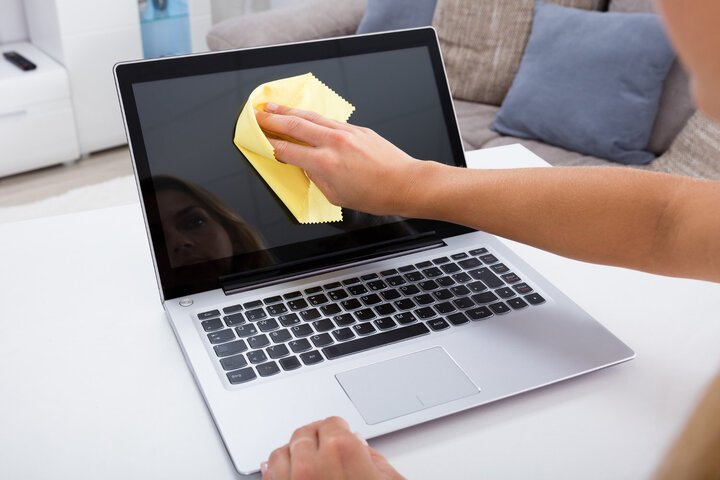
Fingerprints, dust, and that mysterious smudge — laptop screens get gross fast. But the best way to clean a laptop screen without damaging it is simpler than the internet makes it sound: a dry microfiber cloth handles 90% of it, and for stubborn spots, microfiber lightly dampened with distilled water. That’s genuinely the whole technique.
The reason this question matters: modern screens have delicate anti-glare and oleophobic coatings, and the wrong cleaner strips them permanently. I’ve seen beautiful matte displays turned into patchy messes by well-meaning Windex. Here’s how to do it right.
The Right Tools (You Probably Own Them)
- Microfiber cloth — the non-negotiable. Not paper towels, not tissues, not your shirt. Paper products contain wood fibers that micro-scratch screens; microfiber lifts dirt without abrasion. A 6-pack costs ~$8 and lasts years. Keep one in your laptop bag.
- Distilled water — for stubborn spots. Tap water leaves mineral spots as it dries; distilled doesn’t. Dampen (not soak!) the cloth — it should feel barely moist.
- Optional: dedicated screen cleaner. If you want a spray, get one explicitly labeled for screens/LCD (Whoosh, Screen Mom). These are basically distilled water with a tiny amount of surfactant — effective and coating-safe.
That’s the complete kit. Total cost under $15, most of it the cloths you’ll use for glasses and phones too.
The Technique: 4 Steps, 2 Minutes
- 1. Power off and let it cool. A dark, cool screen shows smudges better and eliminates any electrical concern. Unplug it too.
- 2. Dry-wipe first. Fold the microfiber to a clean section and wipe gently in one direction (not circles — circles redistribute grime). This removes dust and loose particles. Never wipe a dry dusty screen hard — dust is abrasive.
- 3. Damp-wipe stubborn spots. Lightly dampen a fresh section of cloth with distilled water. Wipe the smudge with minimal pressure — let the moisture do the work, not your muscles. The screen should never have visible liquid pooling on it.
- 4. Dry immediately. Follow with a dry section of microfiber to remove any moisture. Done.
Pressure is the thing people get wrong — pressing hard on an LCD can damage pixels (those permanent bright/dark dots). If a spot won’t come off with gentle damp wiping, leave it for a second pass rather than bearing down. Screens are tougher than folklore suggests, but gentleness costs nothing.
5 Mistakes That Destroy Screens
- 1. Windex / glass cleaner / ammonia: the classic killer. Ammonia and alcohol strip anti-glare coatings, leaving permanent cloudy patches. This is the #1 screen-destroyer in homes.
- 2. Paper towels, tissues, napkins: wood fibers = micro-scratches. One wipe won’t show; a year of it leaves a hazy screen.
- 3. Spraying liquid directly on the screen: liquid seeps into the bezel edges and can damage the backlight or electronics behind the panel. Always spray the cloth, never the screen.
- 4. Household cleaners (Clorox wipes, all-purpose spray): too harsh, wrong pH, often contain bleach or abrasives. During the pandemic a lot of screens died this way.
- 5. Cleaning while hot/plugged in: heat + moisture + electronics is a bad combo, and you can’t see what you’re doing on a lit screen anyway.
If you’ve already used Windex once or twice, don’t panic — occasional use rarely causes instant visible damage. It’s repeated use that degrades coatings. Switch to microfiber + distilled water now and stop the accumulation.
What About the Keyboard, Trackpad, and Body?
While you’re at it:
- Keyboard: turn the laptop upside down and shake gently (crumbs are universal), then compressed air between keys, then a lightly damp microfiber over the keycaps. For grimy keys, isopropyl alcohol (70%) on a cloth is fine on keycaps — just keep it off the screen.
- Trackpad: slightly damp microfiber, gentle wipe. Trackpads are glass or plastic — much tougher than screens.
- Body/lid: damp microfiber handles it. For sticker residue, a drop of Goo Gone on a cloth (never directly on the laptop).
- Ports and vents: compressed air, short bursts, can upright. Dust-clogged vents cause overheating — which murders battery life and performance.
Frequency: screen wipe-down every 1–2 weeks, keyboard monthly, vents quarterly. Five minutes of maintenance beats a $200 screen replacement.
Screen Protectors: Worth It for Laptops?
Honest opinion: usually unnecessary for laptops — unlike phones, laptop screens don’t live in pockets with keys. But consider one if:
- You have kids who touch the screen (touchscreen laptops + toddlers = constant smudges)
- You eat at your desk daily (grease splatter is real)
- You want privacy — privacy filters double as screen protectors and are genuinely useful in offices, cafes, and planes
- Matte anti-glare protectors can reduce reflections on glossy screens — a nice upgrade for bright rooms
If you do get one, apply it in a steamy bathroom (seriously — the steam settles dust, giving you a bubble-free application). And a protector doesn’t change the cleaning rules: microfiber, gentle, no Windex — you’re just cleaning the protector now. Microfiber care guides note the cloths themselves need washing (no fabric softener!) to stay effective.
Keep Reading
If this was useful, you might also like laptop battery life and overheating and SSD upgrade for old laptops.
The Bottom Line
Dry microfiber first, lightly-damp-with-distilled-water second, minimal pressure always. Never spray liquid on the screen, never use Windex or paper towels, and power off before you start. That’s the entire method — two minutes, twice a month, and your screen stays pristine for the life of the laptop.
Frequently Asked Questions
Can I use eyeglass cleaner on my laptop screen?
Usually yes, if it’s alcohol-free and ammonia-free — most eyeglass sprays are just mild surfactant + water, similar to screen cleaners. Check the label; if it contains alcohol or ammonia, keep it away from the screen.
How do I remove a stuck-on spot without scrubbing?
Hold the damp microfiber on the spot for 30 seconds to soften it, then wipe gently. For truly stubborn residue, a dedicated screen-cleaner spray helps. Patience beats pressure — never scrape with nails or tools.
Is it safe to clean a touchscreen laptop the same way?
Yes — same method. Touchscreens have the same coatings as regular laptop screens. Just be extra gentle since you’re already touching them all day; the oleophobic coating wears with use, and harsh cleaners accelerate that.




One Comment