Here’s an uncomfortable truth: dozens of apps on your phone know where you sleep, work, and shop — and most of them have no good reason to. Learning how to turn off location tracking on your phone apps is one of the highest-impact privacy moves you can make, and it takes about ten minutes.
I’ve audited my own app permissions more than once, and every time I find a flashlight-style app with “Always” location access that I granted in 2019 and forgot. Here’s how to take it all back, on iPhone and Android.
iPhone: Locking Down Location in 5 Minutes
- Go to Settings → Privacy & Security → Location Services. You’ll see every app that’s ever asked, with its current permission.
- Tap each app and set it to the minimum it needs to function:
- Never — for games, shopping apps, social media, utilities. Most apps work fine with zero location.
- Ask Next Time / While Using — for ride-sharing, delivery, maps. They get location only while open.
- Always — almost nothing needs this. Genuinely only: family-safety apps you chose, maybe a smart-home geofence. If a random app demands Always, that’s a red flag about the app.
- Turn off Precise Location (the toggle on each app’s page) for apps that only need your general area — weather apps need your city, not your street address.
- Check System Services (bottom of Location Services) — disable things like “iPhone Analytics,” “Routing & Traffic,” and “Popular Near Me.” Keep Find My iPhone and Emergency Calls & SOS on.
- Under Settings → Privacy & Security → Location Services → System Services → Significant Locations: this is Apple’s log of everywhere you’ve been. Clear the history and toggle it off if it creeps you out (it creeped me out).
Android: Same Idea, Slightly Different Menus
- Go to Settings → Location → App location permissions (wording varies by brand — Samsung: Settings → Location → App permissions).
- Review each app: set to “Don’t allow,” “Ask every time,” or “Allow only while using the app.” Reserve “Allow all the time” for almost nothing.
- Toggle off “Use precise location” per-app where only approximate is needed.
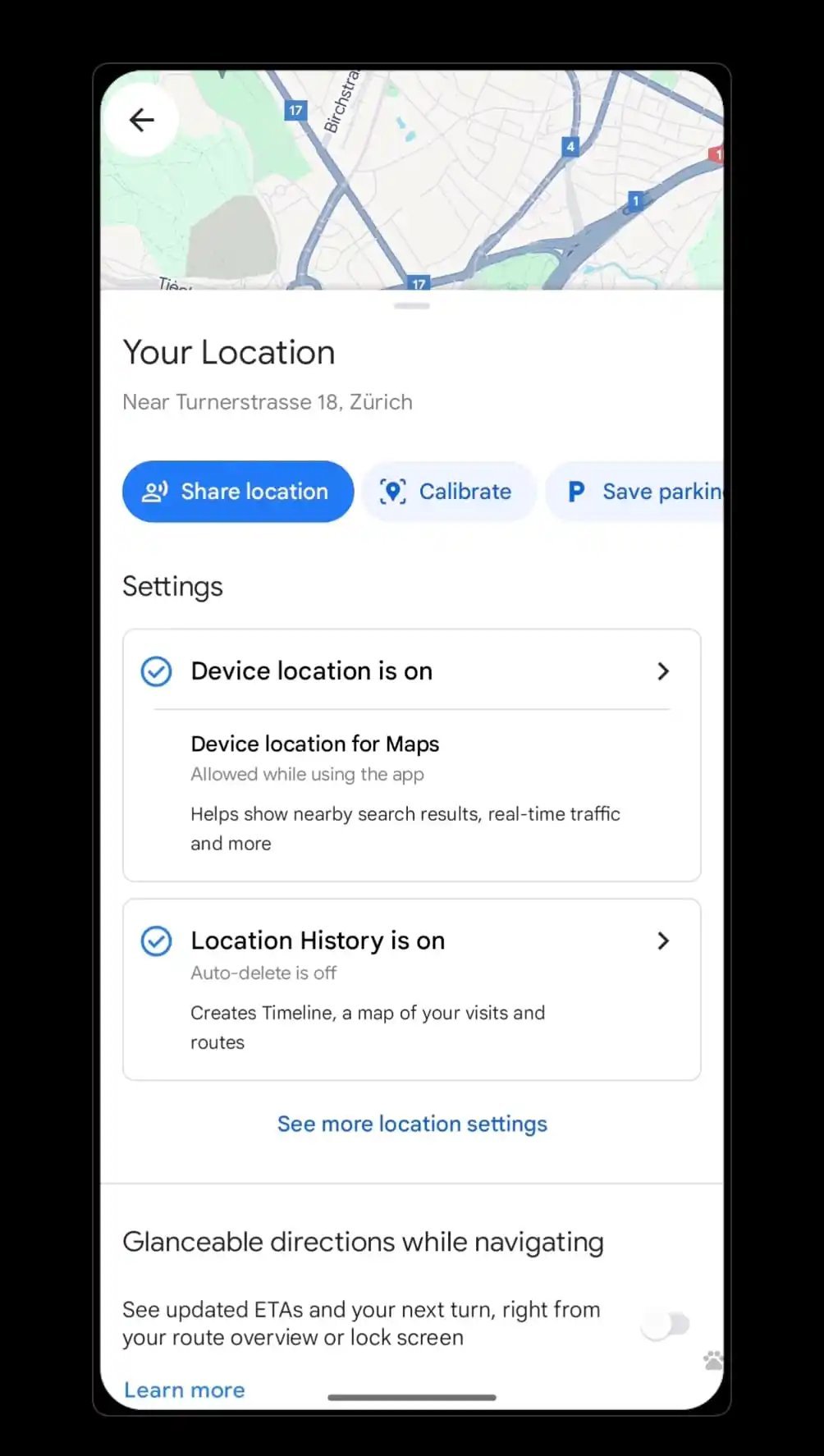
- Check Settings → Location → Location services for the system-level items: Google Location History (this is the big one — it’s a minute-by-minute log at timeline.google.com; pause it and delete history), Wi-Fi scanning and Bluetooth scanning (these let apps infer location even with GPS off — disable both unless you need them).
- Samsung users: also check Settings → Privacy → Customization Service and Permission Manager for Samsung’s own data collection.
Android 12+ shows a green dot when location is actively accessed — if you see it light up while scrolling social media, you know exactly which permission to revoke.
The Sneaky Ways Apps Track You Without GPS
Turning off GPS permission isn’t the whole story. Apps and data brokers piece together location from:
- WiFi network names: the list of nearby wifi networks reveals your location to within meters — databases map every router’s MAC address to GPS coordinates. This is why disabling wifi/Bluetooth scanning matters even when wifi is “off.”
- IP address: coarse (city-level), but combined with other signals it’s identifying.
- Photos’ EXIF data: your camera embeds GPS coordinates in every photo. Strip location before sharing — iPhone: share → Options → toggle off Location; Android: camera settings → turn off location tags, or remove in Google Photos before sharing.
- Check-ins and tags: the location you voluntarily post. The most precise tracking is the kind we do to ourselves.
- Data brokers: apps sell location data to brokers who resell it. This is the real economy behind “free” apps with no business model — the FTC has taken action against location data brokers for exactly this.
The photo EXIF one surprises everyone — before posting that cute kid photo, remember it may contain your home’s GPS coordinates. Strip it.
What Breaks When You Lock Everything Down (Honestly)
Fair warning — privacy has small conveniences costs:
- Weather apps need re-adding your city manually. Takes 10 seconds.
- Maps/navigation needs “While Using” — no way around it, and that’s fine.
- Find-my-friends/family safety apps genuinely need background location — that’s their entire job. Keep these, they’re opt-in.
- Smart home geofencing (“turn on lights when I get home”) needs Always. Decide if the convenience is worth it.
- Some store apps lose “find nearest store” — you can type your zip instead. Not a tragedy.
What doesn’t break: anything else. Games, social media, shopping, banking, streaming — none of these need your location to function, whatever their permission prompts imply. When an app demands location to proceed and you can’t see why, that’s information about the app’s business model, not its technical needs. I delete those apps.
The 10-Minute Privacy Audit (Do This Quarterly)
- Minutes 0–4: walk the location permissions list (above) and demote everything to minimum.
- Minutes 4–6: check Settings → Privacy → Tracking (iPhone — “Allow Apps to Request to Track”) — turn the master switch off. This kills cross-app ad tracking (the IDFA), one of Apple’s best privacy features. Android: Settings → Privacy → Ads → Delete advertising ID.
- Minutes 6–8: review Google Location History (timeline.google.com) — pause and delete. Check Apple’s Significant Locations too.
- Minutes 8–10: strip EXIF location from your camera settings going forward, and remove the worst-offender apps you identified (that random game with Always location? gone).
Set a quarterly reminder. Permissions creep back — every app update seems to re-ask, and “Allow” is always the biggest button. Ten minutes four times a year is the cheapest privacy insurance there is. For the kids’ devices, parental controls should include a location-permission review too.
Keep Reading
If this was useful, you might also like parental controls and apps draining battery.
The Bottom Line
Audit every app’s location permission and demote to minimum: Never for most apps, While Using for maps/delivery, Always for almost nothing. Kill Precise Location where approximate suffices, pause Google Location History, strip EXIF data from shared photos, and turn off cross-app tracking entirely. Ten minutes now, quarterly checkups — your location is yours again.
Frequently Asked Questions
Should I turn off Location Services completely?
Not necessary — the master switch kills useful things like Find My iPhone and emergency location. Better: leave the master on, but set every individual app to the minimum it needs. Precision where it counts, privacy everywhere else.
Do apps still track me if I deny location permission?
They lose GPS access, but can still infer coarse location from IP address and (if you allow it) nearby wifi/Bluetooth scanning. Denying GPS + disabling background scanning + deleting your ad ID closes nearly all of it.
Why does a flashlight app want my location?
It doesn’t need it — it wants to sell it. Location data is bought by data brokers. Any app requesting location without an obvious functional reason is monetizing you; deny it or delete the app.