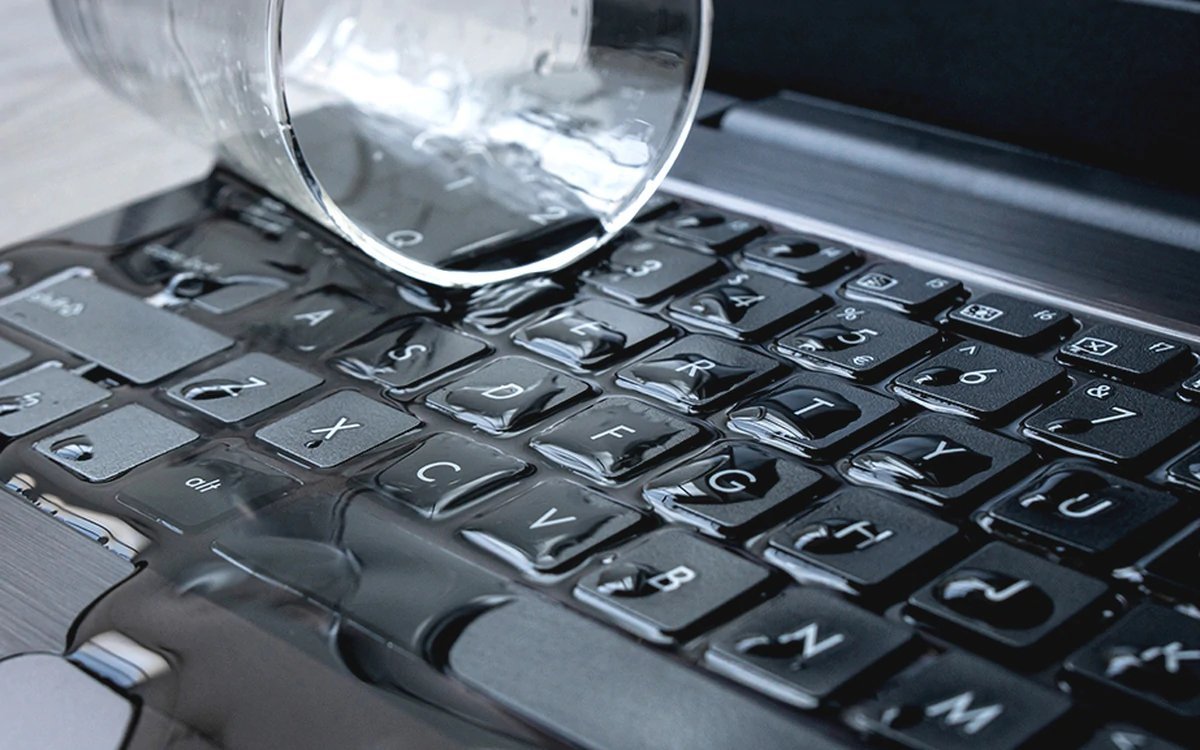
Time slows down when liquid hits a keyboard. What should you do if you spill water on your laptop keyboard? The answer, in order: power off immediately (hold the power button), unplug everything, flip it upside down in a tent position, and don’t turn it back on for 24-48 hours. Those first 60 seconds decide whether this is a scare or a $500 repair.
I’ve rescued two spill victims and lost one (coffee, RIP). Here’s exactly what to do — and the mistakes that kill laptops.
The First 60 Seconds (Do This NOW)
- 1. Power off IMMEDIATELY. Hold the power button until it dies. Don’t “save your work” first — every second of electricity plus water risks short circuits. Data can wait; the motherboard can’t.
- 2. Unplug everything: charger, USB devices, dongles, external monitor. Remove the battery if it’s removable (rare now, but check).
- 3. Flip it upside down in an inverted-V “tent” position — keyboard facing down. Gravity is your friend; let water drain out instead of deeper in.
- 4. Blot, don’t wipe: dab visible liquid with a towel. Wiping pushes water into crevices.
- 5. Disconnect the internal battery if you’re comfortable opening the back panel (YouTube your model). This stops all current — the single best thing for survival odds.
Speed matters more than perfection. A laptop powered off within 10 seconds of a water spill survives most of the time. One left running for five minutes “to finish an email” — much worse odds.
The 48-Hour Drying Protocol
- Keep it tented upside-down for 24-48 hours minimum. Not 4 hours. Water hides under chips and in keyboard membranes long after surfaces look dry.
- Airflow helps: a fan blowing across it at room temperature. Never a hair dryer — heat damages components and pushes water deeper.
- Silica gel packets around it if you have them. Rice works mildly as a desiccant but leaves starch dust; silica and airflow are better.
- Resist the urge to “just check.” Powering on too early is the number one cause of spill deaths. Wait the full 48 hours.
After 48 hours: plug in (don’t power on yet) — if the charging light behaves normally, that’s a good sign. Then power on and immediately back up everything — even if it works, get your data safe first, celebrate second. Our free backup guide covers the fastest methods.
Water vs. Coffee vs. Soda: the Liquid Matters Enormously
- Plain water — best case. Damage comes from impurities and corrosion over time. Fast action plus thorough drying gives excellent survival odds.
- Coffee/tea (unsweetened) — moderate. Mildly acidic and staining, but usually survivable with the full protocol.
- Soda, juice, sweetened coffee, wine — bad. Sugar doesn’t evaporate — it stays behind as a sticky conductive residue that corrodes and shorts over weeks. These laptops often “work” after drying, then die mysteriously a month later.
- For sugary spills: after the initial dry, get the keyboard professionally cleaned or replaced ($75-$150 at a shop). Skipping this is how the delayed death happens.
The pattern: water = dry and hope; sugar = dry, then professional cleaning.
After It Powers On: the Damage Check
It lives! Now verify everything over the next few days:
- Every key: open a text editor and type the alphabet, numbers, symbols. Sticky or dead keys mean keyboard damage (replacement: $30-$80 DIY, $100-$200 at a shop).
- Trackpad, ports, speakers, mic, screen: test each one. Corrosion often hits ports first; look for water spots between screen layers.
- Watch for delayed issues over 2-4 weeks: random shutdowns, fast battery drain, wifi dropping. Corrosion is slow — keep backups current during this window.
If anything’s wrong beyond the keyboard, get a professional assessment — repair shops diagnose spills routinely, and an early cleaning beats a dead motherboard.
Prevention: Spill-Proof Your Setup
- Lidded containers only at the desk — travel mugs, capped water bottles. Open mugs are the enemy. This one habit prevents most spills.
- Keyboard covers ($10-$15 silicone) stop small splashes. Slightly mushy typing, genuine protection.
- Know your warranty: standard warranties exclude spills, but accidental damage plans (AppleCare+, Dell Premium Support Plus) cover them. Worth it for students and kids.
- Back up continuously — the real disaster in a spill isn’t the hardware, it’s the data. Hardware is replaceable; your files aren’t.
Also consider a laptop stand — raised and slightly tilted means spills flow past rather than into the machine, plus better ergonomics. Apple’s liquid-damage guidance has the official line.
What If It Won’t Turn On? (Recovery Options)
Forty-eight hours pass, you press power, and… nothing. Don’t panic yet:
- Try a different charger and outlet — rule out the trivial before the tragic. Charging circuits can be finicky after moisture exposure.
- Listen and look: any lights? Fan spin? Beeps? Signs of partial life mean the motherboard may be OK and the issue is the power button or display connector — both fixable.
- Remove the drive: if the laptop is dead but the SSD/HDD is intact, your data is safe. Pull the drive (YouTube your model — usually a few screws), put it in a $10-$15 USB enclosure, and plug it into another computer. Your files appear like any external drive. This works in the large majority of spill deaths — the drive almost always outlives the motherboard.
- Professional data recovery ($300-$2000) is the last resort for physically damaged drives — rarely needed for spills.
- Repair vs. replace math: motherboard replacement runs $200-$500. On a 4+ year old laptop, put that toward new. On a 1-2 year old machine, repair usually wins — especially with accidental-damage coverage.
The lesson that sticks: the drive-survives part is why continuous cloud backup matters more than any rescue technique. With backup running, a dead laptop is an inconvenience; without it, it’s a crisis.
Keep Reading
If this was useful, you might also like repair shops and our free backup guide.
The Bottom Line
Spill protocol: power off instantly, unplug everything, tent upside-down, blot don’t wipe, dry 48 hours with airflow, resist early power-on. Water spills usually survive; sugary spills need professional cleaning afterward. Test every key, port, and speaker over the following weeks — and switch to lidded drinks at your desk so you never need this article again.
Frequently Asked Questions
Can I use a hair dryer to dry my laptop?
No — heat damages batteries, warps plastic, and pushes water deeper. Room-temperature airflow from a fan for 48 hours is the safe method. Patience beats heat every time.
How long should I wait before turning on a wet laptop?
Minimum 48 hours in a ventilated, tented position. Water hides under chips long after surfaces look dry. Powering on early is the most common cause of permanent spill damage.
Does warranty cover water damage?
Standard warranties exclude liquid damage. Accidental damage plans (AppleCare+, Dell Premium Support Plus) cover it, usually with a $99-$299 deductible. Check your coverage before paying for a repair.