If your old computer takes five minutes to boot and groans every time you open a browser, here’s the best-kept secret in tech: upgrading from a hard drive to an SSD is absolutely worth it — and it’s the single biggest performance upgrade you can buy for $30–$60. I’m not exaggerating when I say it makes a 7-year-old laptop feel like a new machine for everyday tasks.
I’ve done this upgrade on probably a dozen aging computers for friends and family, and the reaction is always the same: disbelief. Boot times drop from minutes to seconds. Programs snap open. The whole machine feels awake again. Here’s the full breakdown of when it makes sense and how to do it.
Why an SSD Makes Such a Dramatic Difference
A traditional hard drive (HDD) is a spinning metal platter with a mechanical arm that physically moves to read data — technology that fundamentally hasn’t changed since the 1950s. An SSD has no moving parts; it’s pure flash memory, like a giant USB stick.
The real-world difference is staggering:
- Boot time: 2–4 minutes on HDD → 15–30 seconds on SSD
- Opening programs: Chrome/Word in 10–20 seconds → 1–3 seconds
- General feel: constant stuttering and “not responding” → smooth and instant
- Durability: no moving parts means drops and bumps don’t kill it — huge for laptops
Here’s the key insight most people miss: on an old computer, the hard drive is almost always the bottleneck, not the processor. Your 2016 Core i5 is still perfectly capable for browsing, Office, and streaming — it’s just been waiting on that slow spinning disk for everything. Free the drive, free the computer.
What It Costs and Which SSD to Buy
Prices have fallen off a cliff — this is genuinely a budget upgrade now:
- 256 GB SATA SSD: $25–$35 — enough if you mostly use cloud storage
- 500 GB SATA SSD: $35–$55 — the sweet spot for most people
- 1 TB SATA SSD: $60–$85 — for big photo/music libraries
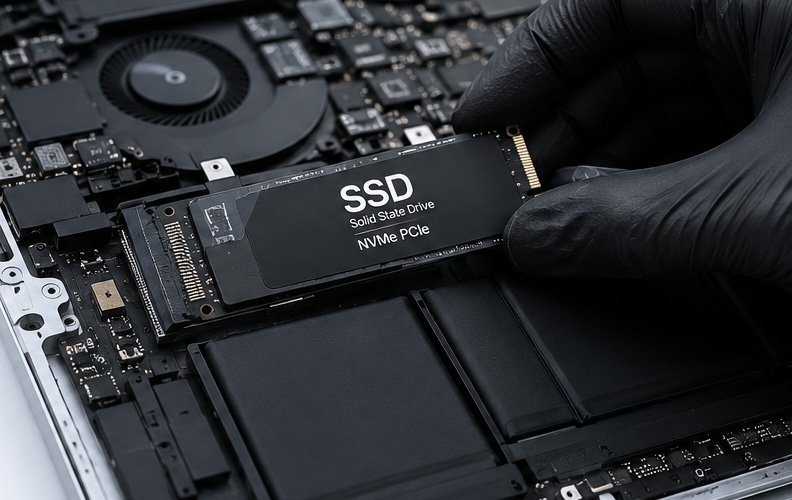
For old computers, you want a 2.5-inch SATA SSD (not the newer M.2 NVMe sticks — old machines usually can’t use them). Trusted brands: Samsung 870 EVO, Crucial MX500/BX500, WD Blue. I’ve installed all three dozens of times; the Crucial MX500 is my default recommendation for price-to-reliability.
One sizing tip: check how much space you’re currently using (Windows: Settings → System → Storage). Buy an SSD at least 50% bigger than your current usage — SSDs slow down and wear faster when nearly full.
How Hard Is the Actual Upgrade?
Honest difficulty rating: 3 out of 10 for most desktops and older laptops. YouTube has a teardown video for nearly every model ever made — search yours before buying anything.
The process:
- 1. Clone your drive using free software like Macrium Reflect or the SSD maker’s own tool (Samsung Magician, Acronis for Crucial). This copies everything — Windows, programs, files — exactly as-is. No reinstalling anything.
- 2. Swap the drives — usually 4 screws and one cable on a desktop; on laptops, often a single bottom panel.
- 3. Boot up and enjoy. Seriously, that’s it. First boot on the SSD is the fun part.
Total time: about an hour, most of it waiting for the clone. The one gotcha: some ultra-thin modern laptops have soldered storage that can’t be upgraded — check your model’s service manual first. And if your machine is really old (pre-2012), also consider whether a refurbished laptop is the smarter move.
When It’s NOT Worth It
I’ll be straight with you — there are cases where I’d skip it:
- The computer has less than 4 GB of RAM and can’t be upgraded. An SSD helps, but 2–4 GB of RAM on Windows 10/11 is still painful. (Though at $30 for the SSD, some people do it anyway.)
- You need it for gaming or video editing. An SSD won’t make an old integrated GPU any faster. It’ll load games quicker, but frame rates won’t budge.
- The machine has other failing hardware — dying battery, broken hinge, failing motherboard. Don’t put new tires on a car with a blown engine.
- It’s a Chromebook or tablet — storage isn’t user-upgradeable on these.
My rule: if the computer was decent in its day (2013–2019, Core i3/i5 or Ryzen) and its only sin is slowness, the SSD upgrade is a no-brainer. If it was a bottom-tier budget machine when new, temper your expectations — it’ll get much better, but it won’t become a speed demon.
SSD vs. Just Buying a New Computer: the Math
Let’s do the math honestly. A $45 SSD + an hour of your time gives a 2016 laptop roughly 70–80% of the everyday feel of a new $500 machine for web browsing, documents, and streaming. That’s an absurd return on investment.
Buy new instead if: you need modern ports or wifi 6, the battery is shot (another $50–$80), you want Windows 11 (old CPUs are cut off), or you just want something thin and light. There’s no shame in upgrading — but try the SSD first. Worst case, you’ve spent $45 and learned the old machine truly is done. Best case, you’ve delayed a $500 purchase by 2–3 years.
One more consideration: if you do buy new eventually, you can pull the SSD out and use it as a blazing-fast external drive with a $10 USB enclosure. Nothing wasted. For the full picture on extending old hardware, Crucial’s SSD vs HDD explainer has good technical depth.
Keep Reading
If this was useful, you might also like whether a refurbished laptop is the smarter move and how to extend your laptop’s battery life.
The Bottom Line
Yes — upgrading an old computer from HDD to SSD is worth it in the vast majority of cases. For $35–$55 and an hour of work, you get the single most dramatic performance improvement possible on aging hardware. Just confirm your machine takes a 2.5-inch SATA drive, clone before you swap, and buy from a reputable brand. Your old computer will thank you by feeling new again.
Frequently Asked Questions
Will an SSD make my old computer run Windows 11?
An SSD dramatically improves speed but doesn’t change CPU compatibility — if your processor isn’t on Microsoft’s Windows 11 list, you’ll stay on Windows 10 (supported with security updates through October 2025 for most, extended options after). The SSD is still worth it for Windows 10.
How long do SSDs last?
Modern SSDs are rated for hundreds of terabytes of writes — for normal home use, that’s 7–10+ years. They actually outlast hard drives on average because there are no mechanical parts to wear out.
Can I keep my old hard drive too?
Yes! On desktops, keep the HDD as a second drive for bulk storage (photos, videos). On laptops with a DVD drive, a cheap caddy lets you replace the optical drive with the old HDD. Best of both worlds.