
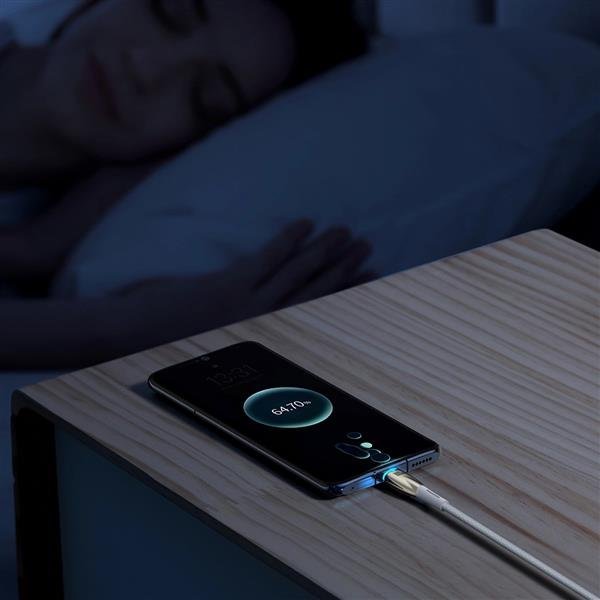
Going to bed at 60% and waking up at 12% feels like your phone is haunted. When people ask how to stop apps from draining their phone battery overnight, my first advice is always the same: check the battery usage screen before changing anything. Nine times out of ten, one or two rogue apps are responsible — and once you name them, the fix takes two minutes.
I’ve chased overnight drain on both iPhone and Android, and it’s almost never mysterious once you look at the data. Here’s the full playbook.
Find the Culprit in 60 Seconds
- iPhone: Settings → Battery. Scroll to the app list and tap “Last 24 Hours”. Look at Background Activity — any app with hours of background time that you barely opened is your vampire.
- Android: Settings → Battery → Battery usage. Same idea: sort by usage and look for apps burning power in the background.
Usual suspects in my experience: Facebook, TikTok, Snapchat, Google Maps (location!), email apps stuck syncing, and any app that recently updated and introduced a bug. One bad update can turn a well-behaved app into a battery hog overnight — literally. If the drain started suddenly, check which apps updated recently.
The Settings That Actually Stop Overnight Drain
Once you’ve identified the hogs, here’s the fix order:
- Turn off Background App Refresh (iPhone: Settings → General → Background App Refresh — disable it entirely or per-app). This is the single biggest lever. Most apps do not need to refresh in the background; they just want to.
- Restrict background battery (Android: Settings → Apps → app → Battery → Restricted). Android lets you put misbehaving apps on a leash individually.
- Kill location access for greedy apps: set location to “While Using” instead of “Always” for everything except maps and ride-sharing. Constant GPS polling is a notorious overnight killer — turning off location tracking for apps you don’t trust covers this in detail.
- Disable auto-downloads and auto-play: podcast apps downloading episodes at 3 AM, app stores auto-updating — schedule these for when you’re awake and charging.
- Turn off “Hey Siri” / “Hey Google” listening if you don’t use it. The always-on microphone uses a small but constant trickle.
After making changes, give it one night and re-check the battery screen. You should see the difference immediately.
Overnight Habits That Help (and Myths That Don’t)
What actually helps:
- Airplane mode or Do Not Disturb overnight. Airplane mode is the nuclear option — zero drain from radios. If you need calls to come through, Do Not Disturb + wifi calling is the gentler version.
- Charge with an optimized limit. iPhone’s Optimized Charging and Android’s Adaptive Charging learn your wake time and hold at 80% until morning. Less time at 100% = slower battery aging.
- Keep the phone cool. Don’t charge under your pillow. Heat accelerates drain and long-term wear.
Myths to ignore: force-closing all your apps every night (iOS and Android manage memory better than you do — constant reopening actually uses more battery), and “battery calibration” apps (modern phones calibrate themselves; those apps are mostly ad delivery vehicles).
If you’ve done all this and still lose 20%+ overnight on standby, the battery itself may be worn — these are the signs it needs replacing.
When It’s Not an App at All
Sometimes the drain has nothing to do with apps:
- Weak cellular signal: if your bedroom has one bar, your phone’s radio works overtime all night searching for signal. Wifi calling or airplane mode fixes this instantly. This is genuinely one of the most common causes people miss.
- A stuck OS update: a failed or pending update can keep the phone churning. Check for updates and install them while charging.
- Failing battery: as cells age, self-discharge increases. A 3-year-old phone losing 15% overnight with everything restricted is just… old.
My diagnostic order: check the battery screen → restrict the top offenders → try one night in airplane mode. If airplane mode fixes it, it’s radios or background sync. If it doesn’t fix it, it’s the battery. Simple as that. Apple’s battery performance guide explains the iPhone side officially.
My 5-Minute Bedtime Phone Routine
After years of fiddling, here’s the routine I actually stick to — it takes five minutes and my phone loses 2–4% overnight, every night:
- Plug in on the nightstand — on a hard surface, not under the pillow. Optimized/Adaptive Charging handles the rest.
- Do Not Disturb on (scheduled automatically 11 PM–7 AM). Emergency contacts can still ring through if you allow them.
- Leave wifi on if you use wifi calling — it uses less power than a struggling cellular radio hunting for signal.
- Don’t force-close anything. Seriously. Let the OS do its job.
- Glance at tomorrow’s alarm while you’re there. Future-you says thanks.
The travel version: in hotels with weak signal, airplane mode + wifi (if the hotel wifi is usable) saves enormous battery — a phone fighting for one bar all night can burn 30%+. And if you wake up to a dead phone even after all this, revisit the battery replacement signs — at some point it’s the hardware, not the habits.
Keep Reading
If this was useful, you might also like the signs your phone battery needs replacing and turning off location tracking for apps you don’t trust.
The Bottom Line
Tonight’s action plan: check Settings → Battery to name the worst offenders, turn off Background App Refresh for apps you don’t need live, set location to “While Using” for the greedy ones, and sleep with Do Not Disturb on. Most people cut overnight drain from 25% to under 5% with just those steps — no new phone required.
Frequently Asked Questions
Is it bad to leave my phone charging overnight?
Not really, with modern phones — Optimized/Adaptive Charging holds the battery at 80% until near your wake time. The bigger enemy is heat, so charge on a hard surface, not under bedding.
Should I close all apps before bed to save battery?
No. Force-closing apps and reopening them uses more power than letting the OS suspend them. Instead, restrict background activity for the specific apps that abuse it.
Why did my battery suddenly start draining fast?
Almost always a recent app or OS update with a bug, or a settings change (like location set to Always). Check battery usage for the last 24 hours — the culprit is usually obvious.






One Comment