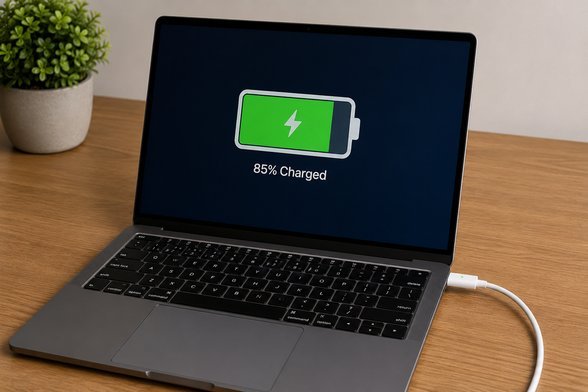
Laptop batteries are like phone batteries with bigger ambitions and the same chemistry — and extending your laptop’s battery life comes down to two things: settings that reduce drain (screen brightness is king) and habits that slow aging (heat is the enemy). Do both and you’ll get more hours per charge and more years from the battery.
I’ve nursed laptop batteries through years of daily use. Here’s what actually moves the needle, ranked by impact.
The Big Three: Settings That Matter Most
- 1. Screen brightness — the #1 drain. The display uses more power than everything else combined. Dropping from 100% to 60–70% brightness can add 1–2 hours of runtime. Use auto-brightness or the keyboard shortcut reflexively — this single habit beats every other tip combined.
- 2. Battery Saver mode. Windows: Settings → System → Power & battery → Battery saver (set to kick in at 30–40%, not 20%). Mac: System Settings → Battery → Low Power Mode. It throttles background activity and trims performance you won’t miss for browsing/documents.
- 3. Sleep aggressively. Set display-off to 3–5 minutes and sleep to 10–15 minutes on battery. A laptop idling with the screen on burns through charge doing literally nothing — the most wasteful drain there is.
Those three are 80% of the game. Everything below is optimization.
Find Your Battery Vampires
- Windows: Settings → System → Power & battery → Battery usage — sort by app. Chrome with 40 tabs is the classic vampire; each tab costs memory and CPU.
- Mac: click the battery icon → “Using Significant Energy” names the culprits live. Activity Monitor → Energy tab ranks them precisely.
- Usual suspects: Chrome (use tab suspension extensions or switch to Edge/Safari for battery), Slack/Discord/Teams (constant syncing — quit when not needed), Spotlight/indexing after updates, cloud sync clients uploading, and any app with a spinning “syncing” indicator.
- Browser choice matters: on Macs, Safari gets 1–2 hours more than Chrome in Apple’s own testing and independent reviews. On Windows, Edge (Chromium-based, battery-optimized) beats Chrome modestly. Your 47-tab habit costs more than the browser brand, though.
- Close what you’re not using. Not minimize — quit. Background apps are background drain.
Radios, Peripherals, and Other Silent Drains
- WiFi vs. everything else: wifi is necessary; Bluetooth when unused is pure waste — toggle it off. (Weak wifi also drains more — the radio shouts louder to reach a distant router. Fix weak wifi and the battery thanks you.)
- Unplug USB devices you’re not using — external drives, dongles, and especially phone-charging cables draw power continuously.
- Keyboard backlight: pretty, and a real (if modest) drain. Dim it or disable on battery.
- Lower the refresh rate if your laptop has a 120Hz+ screen — 60Hz saves meaningful power for document work.
- Disable startup bloat: Windows Task Manager → Startup — every auto-launching app is draining from boot. Be ruthless.
Charging Habits: Make the Battery Last YEARS
Runtime per charge is half the story; lifespan is the other half. Lithium batteries age via heat and high voltage:
- Cap charging at 80%: Lenovo Vantage, MyASUS, Dell Power Manager, and macOS Optimized Charging all offer charge limits. A battery kept at 80% degrades dramatically slower than one pinned at 100% daily. If your laptop lives on a desk plugged in, this is the single best thing you can do.
- Heat kills: don’t use the laptop on a bed/pillow (blocked vents = oven), keep it out of hot cars, and clean dust from vents yearly — dust-clogged cooling forces fans to work harder and batteries to bake.
- Partial charges are fine: topping from 50% to 80% is gentler than 0–100% cycles. The “full discharge” advice is ancient nickel-battery folklore.
- Don’t store at 0% or 100%: storing a laptop for months? Leave it at ~50%. Dead-flat storage can kill a battery permanently.
- Calibrate occasionally: every few months, run it down to ~10% then full-charge — this recalibrates the gauge, not the chemistry. (Your “40% to dead in 5 minutes” might just be a confused meter.)
When the Battery Is Just Done
All batteries die eventually — typically 300–500 full cycles (2–4 years of daily use). Signs it’s hardware, not settings:
- Check health: Windows → generate a battery report (open Terminal/PowerShell, type
powercfg /batteryreport— it makes an HTML file with design vs. current capacity). Mac → System Settings → Battery → Battery health. Below 70–75% of design capacity, replacement is worth considering. - Replacement cost: $50–$100 for most Windows laptops (DIY-friendly on business models — ThinkPads/Latitudes often have external or easily-swapped batteries), $129–$199 via Apple for MacBooks.
- Worth it? If the laptop is otherwise good (SSD, 8+ GB RAM — the upgrade math), a $70 battery buys 2–3 more years. That’s excellent ROI.
- Swollen battery: trackpad/keyboard bulging, case separating — stop using it immediately. Same fire risk as phones. Don’t charge it; get it to a professional.
The unsexy truth: most “my laptop battery is terrible” complaints are fixable with brightness + battery saver + capped charging. Try the settings for a week before buying anything. laptops’ Energy Star ratings correlate with efficiency if you’re shopping for a replacement.
Keep Reading
If this was useful, you might also like SSD upgrade math and cleaning dust from vents.
The Bottom Line
Today: drop brightness to 60–70%, enable Battery Saver, set aggressive sleep timers, quit unused apps (especially Chrome tab hoards). This week: cap charging at 80% if your laptop offers it, clean the vents, kill Bluetooth when unused. Long-term: avoid heat, don’t store at 0%/100%. Those habits add hours per charge and years to the battery’s life.
Frequently Asked Questions
Should I keep my laptop plugged in all the time?
It’s fine if you cap charging at 80% (via manufacturer software or macOS Optimized Charging). Pinned at 100% 24/7 accelerates aging significantly. With the cap on, plugged-in desk life is harmless.
Does dark mode save laptop battery?
Only on OLED screens (rare in laptops) — on standard LCD/LED displays, dark mode saves essentially nothing since the backlight stays on regardless. Brightness setting matters ~100x more than theme.
How many hours should a laptop battery last?
Modern ultrabooks: 8–15 hours of light use. Real-world with brightness at 70% and normal browsing: expect 60–70% of the manufacturer’s claim. Under 3 hours on a 2-year-old laptop usually means settings issues or a worn battery — check the health report.