
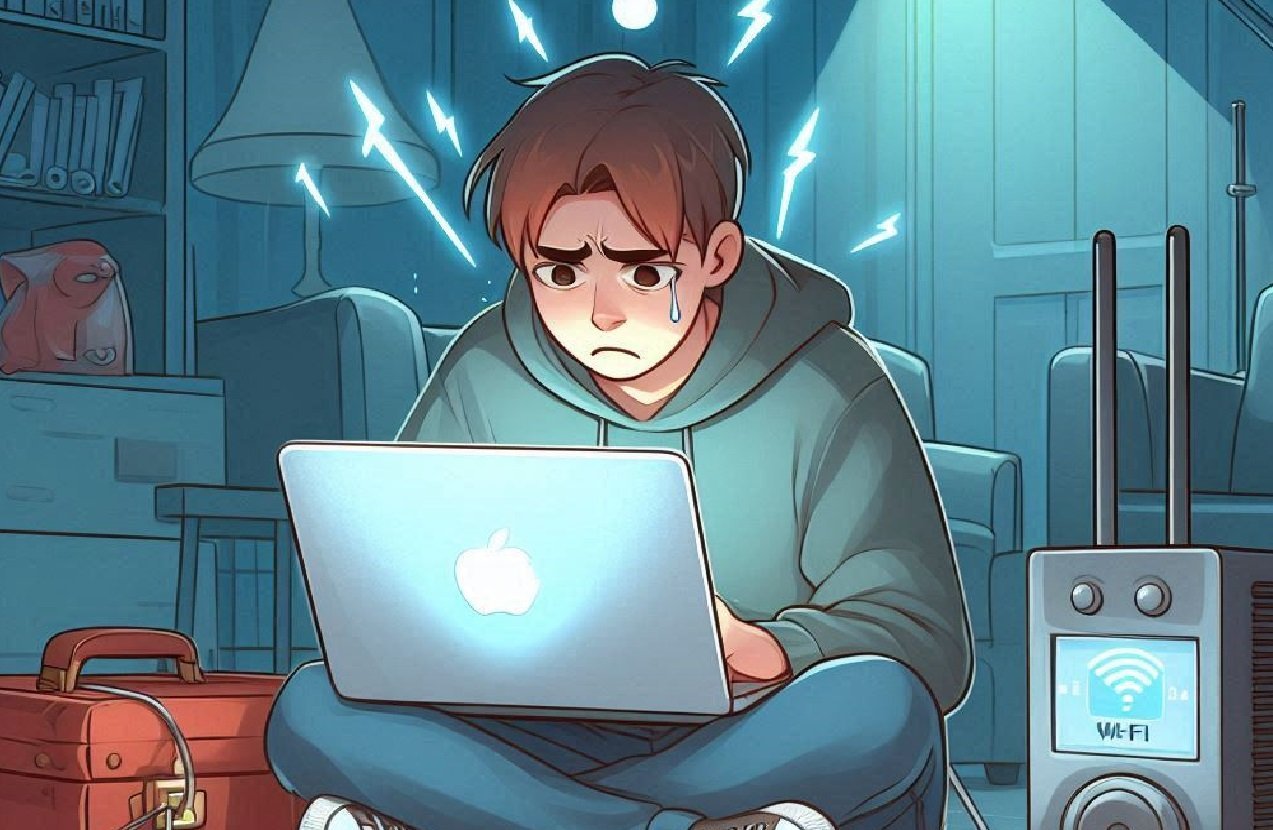
Few things are more infuriating than wifi that drops right in the middle of a video call or while you’re submitting something important. If you’re asking why your wifi keeps disconnecting on your laptop, the culprit is usually one of three things: your router needs attention, your laptop’s wifi adapter is misbehaving, or something is interfering with the signal.
I’ve debugged this exact problem dozens of times — for myself, for family, for neighbors who now think I’m “the wifi person.” The fixes below are ordered from quickest to most involved, and honestly, one of the first three solves it most of the time.
Start With the 30-Second Fixes
Don’t skip these just because they sound too simple. They fix a surprising number of cases:
- Restart the router properly: unplug it, wait a full 30 seconds (this matters — it lets the capacitors drain and clears the memory), plug it back in, and wait 2 minutes. This alone fixes maybe 40% of disconnect issues.
- Forget and rejoin the network: on your laptop, forget the wifi network, then reconnect and re-enter the password. This clears corrupted saved network profiles.
- Move closer as a test: if the drops stop when you’re next to the router, you’ve got a range or interference problem, not a broken laptop.
If the drops only happen in the evening, slow evening internet has its own set of causes — worth reading before you blame your laptop.
The Hidden Windows Setting That Causes Most Drops
Here’s the one most articles bury: Windows tries to save battery by turning off your wifi adapter when it thinks you’re idle. On many laptops this triggers random disconnects.
Fix it in 60 seconds: open Device Manager → Network adapters → your wifi adapter → Properties → Power Management tab, and uncheck “Allow the computer to turn off this device to save power.” While you’re there, check Settings → System → Power & battery and make sure your wifi isn’t set to aggressive power saving on battery.
I’d estimate this single checkbox is behind a third of the “random disconnect” complaints I’ve seen on Windows laptops. It’s always worth checking early.
Update (or Roll Back) Your Wifi Driver
Wifi drivers are famously flaky. Two scenarios:
- Old driver: check your laptop manufacturer’s support page (Dell, HP, Lenovo) for a newer wifi driver — not just Windows Update, which often lags behind. Intel and Realtek also publish drivers directly.
- Recently updated and now broken: this happens more than manufacturers admit. In Device Manager, roll the driver back to the previous version and see if the drops stop.
Also worth trying: in the adapter’s Advanced tab, set Preferred Band to 5 GHz if your router supports it (faster, less interference, shorter range) or 2.4 GHz if you’re far from the router (slower but reaches further through walls).
When It’s the Router or Interference, Not the Laptop
If other devices drop too, your laptop is innocent — look at the network:
- Router placement: central, raised, out in the open. Not in a closet, not behind the TV, not on the floor. Wifi hates obstacles.
- Channel congestion: in apartments, everyone’s routers fight over the same channels. Log into your router and switch to a less crowded channel (apps like WiFi Analyzer show you which are free).
- Microwaves, baby monitors, Bluetooth: these all live in the 2.4 GHz band and can knock out wifi. If drops coincide with microwave use, that’s your answer.
- Old router: if your router is 5+ years old, it may simply be dying. A $70–$100 modern router is one of the best tech upgrades per dollar you can buy.
One more possibility: your ISP’s modem is the problem. If the router’s internet light goes out during drops, call your provider — and the FCC’s broadband guide is useful backup when disputing slow or unstable service.
Mesh Wifi: the Permanent Fix for Bigger Homes
If your disconnects happen mostly far from the router — the bedroom, the backyard office, upstairs — you don’t have a laptop problem, you have a coverage problem. No settings tweak fixes physics: a single router struggles past 1,500–2,000 square feet, especially through walls and floors.
This is where mesh wifi systems (Eero, Google Nest Wifi, TP-Link Deco) earn their keep. Instead of one router shouting from the corner, you place 2–3 small nodes around the house that hand off your connection seamlessly as you move. A good 2–3 pack costs $150–$300, setup takes 15 minutes via an app, and in my experience it eliminates dead zones completely.
Skip the old-school single-band wifi extender if you can — the cheap ones cut your speed in half because they use the same radio to talk to both the router and your device. Repurposing an old router as an extender can work in a pinch, but a modern mesh kit is the fix you install once and forget for five years. If you work from home, it’s genuinely one of the highest-ROI tech purchases you can make.
Keep Reading
If this was useful, you might also like why your internet gets slow in the evening and using an old router as a wifi extender.
The Bottom Line
Work through it in order: restart the router (unplug 30 seconds), disable Windows’ wifi power-saving, then update the wifi driver. Those three fix the vast majority of laptop disconnects. If drops persist across all your devices, the router itself — its age, placement, or channel — is the prime suspect.
Frequently Asked Questions
Why does my wifi disconnect only on my laptop and not my phone?
That points to the laptop: usually the Windows power-saving setting on the wifi adapter, a buggy driver, or the laptop’s weaker antenna struggling with a weak signal your phone handles fine.
Can a VPN cause wifi disconnects?
A VPN won’t drop your wifi connection itself, but a misbehaving VPN client can make it look like the internet died. If drops started after installing a VPN, try disconnecting it as a test.
Should I use 2.4 GHz or 5 GHz to stop disconnecting?
Close to the router: 5 GHz (faster, less interference). Far away or through walls: 2.4 GHz (reaches further). If your laptop keeps hopping between bands and dropping, lock it to one in the adapter’s Advanced settings.






2 Comments