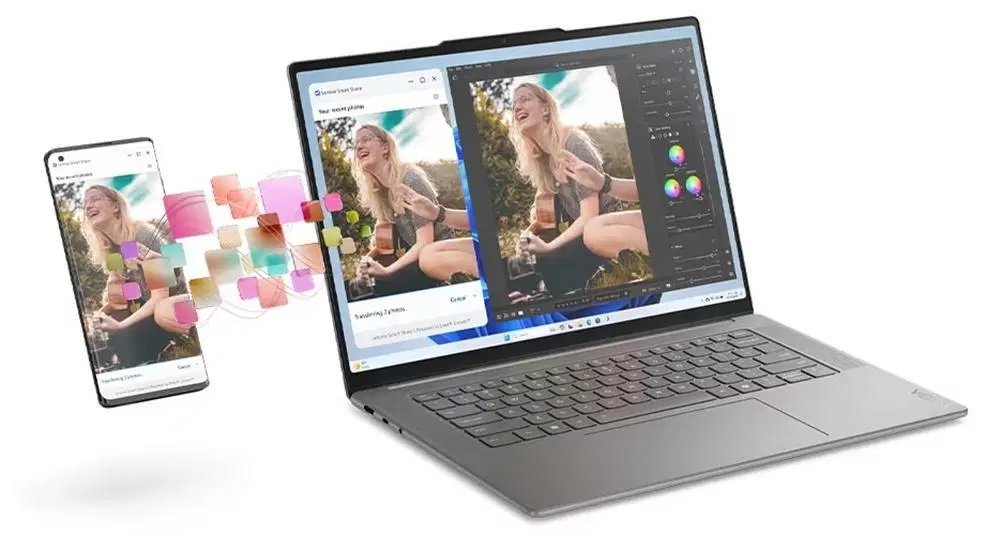
We’ve all been there: you need photos off your phone now, and the cable is… somewhere. Maybe in a drawer, maybe in another state. Learning how to transfer photos from your phone to your laptop without a cable is one of those small skills that saves you again and again once you know it.
I’ve moved thousands of photos wirelessly across every phone/laptop combo you can imagine. Here are the five methods that actually work, ranked from fastest to simplest.
1. Cloud Sync: the Set-It-and-Forget-It Winner
If you set this up once, you’ll never think about transfers again:
- iPhone + Mac/Windows: iCloud Photos syncs everything automatically. On Windows, install iCloud for Windows and your photos just appear in File Explorer.
- Android + anything: Google Photos backup means every photo is waiting at photos.google.com on your laptop. Select, download, done.
- OneDrive/Dropbox camera upload: both offer automatic camera uploads. OneDrive is nice because it’s baked into Windows.
The downside: the first sync of a big library can take hours on slow wifi, and free tiers fill up. But for ongoing transfers, nothing beats “it just shows up.” This pairs well with backing up your computer files to the cloud for free if you’re building a full backup habit.
2. Nearby Share / AirDrop-Style Direct Transfer
For a quick batch of photos right now, direct wireless transfer is fastest:
- iPhone → Mac: AirDrop. Select photos → Share → AirDrop → your Mac. Full quality, no compression, takes seconds.
- Android → Windows: Nearby Share (now called Quick Share on newer devices) or Microsoft’s Phone Link app, which lets you drag photos straight off your phone onto your PC.
- Android → Mac: tricker, since there’s no AirDrop. Use Snapdrop (see below) or Google Photos.
Direct transfer keeps full resolution — unlike messaging the photos to yourself, which compresses them. Never email photos to yourself if quality matters; email providers shrink images aggressively.
3. Snapdrop: the No-Install Secret Weapon
Snapdrop.net is my favorite trick for this. Open the site on both your phone and laptop (same wifi network), your devices find each other, and you drag-and-drop files between them. No app, no account, no cable.
It works on iPhone, Android, Windows, Mac — everything with a browser. Transfers are fast on local wifi and files go directly device-to-device, not through some company’s server. I’ve used it in offices, hotels, and coffee shops for years. Bookmark it; you’ll use it more than you expect.
4. Messaging and Email (Fine in a Pinch)
Sending photos to yourself via WhatsApp, Telegram, or email works, but with caveats:
- Telegram is the best of the bunch — send as a file (not a photo) and it preserves full quality. Saved Messages is your personal cloud locker.
- WhatsApp compresses photos unless you send them as documents. Good enough for quick sharing, bad for archiving.
- Email works for a handful of photos but most providers cap attachments around 25 MB.
Use these when you need one or two photos fast. For a whole vacation album, use one of the methods above.
5. Your Phone’s Built-In Companion Apps
Don’t overlook the official tools — they’re better than they used to be:
- Microsoft Phone Link (Windows + Android): browse your phone’s recent photos right on your PC and drag them over.
- Samsung Flow / Smart Switch: solid if you’re in the Samsung ecosystem.
- iTunes/Finder wifi sync (iPhone): enable “Sync with this iPhone over Wi-Fi” once while cabled, and future syncs happen wirelessly.
My honest recommendation? Set up cloud backup once for the everyday flow, and keep Snapdrop bookmarked for the quick one-off transfers. Between those two, you’ll never hunt for a cable again. For the reverse problem — Google’s guide to downloading your library — the same cloud tools work in reverse.
Going the Other Way: Laptop to Phone Transfers
Everything above works in reverse, which comes up more than you’d think — moving a boarding pass PDF, a video edit, or a big file to your phone. Snapdrop is bidirectional: open it on both devices and drag files either direction. Telegram’s Saved Messages is my universal clipboard — I send files, links, and notes to myself from my laptop and they appear on my phone instantly.
For Apple users, AirDrop from Mac to iPhone is seamless, and dropping files into iCloud Drive on your PC makes them appear in the iPhone Files app. On Android, Google Drive or Nearby Share from a Chromebook does the same job.
One honest note: for truly huge files — multi-gigabyte video projects — a cable is still king. Wireless is convenient, but USB 3 moves gigabytes in seconds while wifi can take ten minutes. Use wireless for the everyday stuff and save the cable hunt for the big jobs. And if you’re moving files between computers rather than phones, these free cloud backup methods double as transfer tools.
Keep Reading
If this was useful, you might also like how to back up your computer files to the cloud for free and the easiest way to organize thousands of photos.
The Bottom Line
The quickest no-cable transfer: open Snapdrop.net on both devices and drag your photos across — done in a minute, full quality. The smartest long-term move: turn on iCloud Photos or Google Photos backup once, and your photos will simply be on your laptop whenever you need them.
Frequently Asked Questions
Do wireless transfers reduce photo quality?
It depends on the method. AirDrop, Nearby Share, Snapdrop, and cloud services at original quality preserve full resolution. WhatsApp, Messenger, and email compress photos — avoid them for anything you want to print or archive.
What’s the fastest way to transfer hundreds of photos?
Cloud sync (Google Photos or iCloud) with both devices on fast wifi, or a direct cable if you change your mind about the cable. For a few hundred photos, Snapdrop on local wifi is surprisingly quick.
Can I transfer photos without internet?
Yes — AirDrop, Nearby Share, and Snapdrop all work over local wifi or direct device-to-device connections with no internet required. Cloud methods need an internet connection.