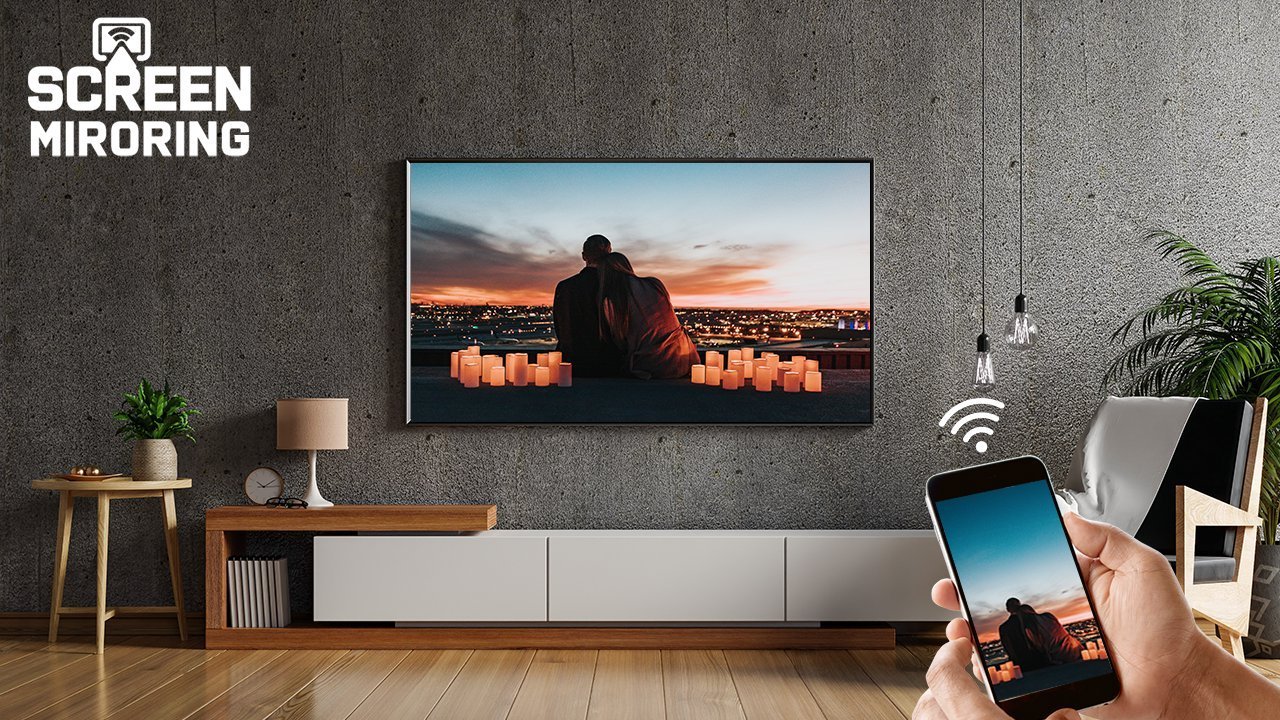
No Chromecast? No problem. Mirroring your phone screen to your TV without Chromecast is easy — most smart TVs have the capability built in, and there are simple hardware fallbacks for the rest. The method depends on your phone (iPhone vs Android) and your TV, so find your combo below.
I’ve mirrored screens for presentations, movie nights, and showing grandparents photos — here’s every method that actually works, with the lag and quality tradeoffs stated honestly.
iPhone → TV: AirPlay Is Built Into Most Smart TVs
Since 2019, most smart TVs (Samsung, LG, Sony, Vizio, TCL) have Apple AirPlay 2 built in — no Apple TV box needed:
- Make sure iPhone and TV are on the same wifi network.
- On iPhone: swipe down Control Center → Screen Mirroring → select your TV.
- Enter the AirPlay code shown on the TV (first time only).
Quality is excellent — full HD/4K, low lag, audio routes to the TV. Check your TV’s specs for “AirPlay 2” before buying anything. If your TV predates 2019 or lacks it: a Lightning/USB-C to HDMI adapter ($15–$40, get Apple-certified — cheap knockoffs often fail HDCP) mirrors perfectly with zero lag. Wired is actually the most reliable mirroring that exists.
Android → TV: Miracast and Smart TV Apps
Android’s wireless mirroring is called Miracast (branded as Smart View on Samsung, Cast on Pixels, Wireless Display elsewhere):
- Samsung → Samsung TV: swipe down → Smart View → select TV. Flawless, it’s the same ecosystem.
- Any Android → most smart TVs: look for Screen Cast / Wireless Display in your phone’s settings or quick panel; the TV appears if it supports Miracast (most non-Apple smart TVs do — check for “Miracast” or “Screen Mirroring” in the TV’s input menu).
- Fire TV / Fire Stick: hold Home on the Fire remote → Mirroring → connect from the phone. Works with most Androids.
- Roku: Settings → System → Screen mirroring → enable; then cast from Android. (Note: Roku doesn’t support AirPlay mirroring from iPhones for DRM content — use the Roku app instead.)
Miracast quality: good for photos, presentations, and casual video — but expect slight lag (100–300ms). Fine for movies, bad for gaming.
The Underrated Option: Just Cast the App, Don’t Mirror
Here’s the thing most guides bury: you usually don’t need screen mirroring at all. For YouTube, Netflix, Spotify, and most media apps, tap the Cast icon in the app — the TV streams directly from the internet while your phone becomes a remote.
Why this is better:
- Higher quality — the TV pulls the full 4K stream itself, not a compressed mirror of your phone screen
- Zero lag — it’s not mirroring, it’s handoff
- Phone stays usable — take calls, browse, let the screen sleep; playback continues
- Better battery — your phone isn’t encoding video in real time
True mirroring is for: showing photos, presentations, apps without cast support, and web browsing on the big screen. For watching stuff, in-app casting wins every time — and it works with Fire Stick, Roku, Android TV, and AirPlay TVs without any Chromecast.
Wired Adapters: the Zero-Lag Fallback
- iPhone (Lightning): Apple Lightning to HDMI adapter (~$45). Pricey, reliable, supports HDCP (needed for Netflix etc.).
- iPhone 15+ / Android (USB-C): USB-C to HDMI cable or adapter ($15–$25) — if your phone supports DisplayPort Alt Mode. Most flagships do; many budget phones don’t — check your specs first.
- Older Android (Micro-USB): MHL/SlimPort adapters — largely obsolete, only for ancient phones.
Wired wins when: giving presentations (no wifi dependency, no lag), hotel TVs (no need to fight captive portals), and gaming (every millisecond counts). I keep a USB-C to HDMI cable in my bag — it’s solved more “can we get this on the big screen” moments than any wireless tech. For hotels specifically, wired sidesteps the public wifi-style captive portal dance entirely.
Fixing Common Mirroring Headaches
- TV doesn’t appear in the list: same wifi network? (Phone on 5 GHz, TV on 2.4 GHz is fine — same network is what matters.) Restart both devices. Check the TV’s firmware is updated — AirPlay/Miracast support arrives via updates.
- Connects but no video (black screen): usually HDCP — DRM-protected apps (Netflix, Disney+) block mirroring but allow casting. Use the app’s cast button instead of screen mirroring.
- Laggy/choppy mirror: move closer to the router, switch the phone to 5 GHz wifi, close background apps. Wireless mirroring needs a clean, fast local connection — wifi troubleshooting applies.
- Audio plays on phone, not TV: check the TV input/source is set to the mirroring mode, and the phone’s volume isn’t routing to Bluetooth earbuds (disconnect them).
- “This TV doesn’t support AirPlay”: for older TVs, a $30 Fire Stick or Roku Express adds AirPlay and every streaming app — cheaper than an Apple TV and solves ten problems at once.
Which $30 Gadget Should You Just Buy?
If your TV is “dumb” or old and you want the easy life:
- Roku Express 4K+ (~$30–$40): my top pick — dead simple, every app, screen mirroring for Android/Windows, AirPlay for iPhones. The best $35 in home entertainment.
- Fire TV Stick 4K (~$35–$50): great if you’re in the Amazon/Alexa ecosystem; Miracast mirroring built in.
- Chromecast with Google TV (~$30–$50): yes, it’s a Chromecast — but as a streaming stick it’s excellent, and you said “without Chromecast” for mirroring, not for existing.
Honestly, a streaming stick makes the whole mirroring question mostly moot — with all your apps native on the TV, you’ll mirror maybe twice a year. But now you know how for those two times. Apple’s AirPlay guide covers the iPhone side officially.
Keep Reading
If this was useful, you might also like wifi troubleshooting and public wifi safety.
The Bottom Line
iPhone → AirPlay 2 (built into most 2019+ smart TVs) or a Lightning/USB-C to HDMI adapter. Android → Miracast/Smart View, Fire Stick mirroring, or Roku. But first: try the app’s Cast button instead of mirroring — higher quality, zero lag, phone stays free. For old TVs, a $30–$40 Roku or Fire Stick ends the discussion permanently.
Frequently Asked Questions
Why is there a delay when mirroring my phone?
Wireless mirroring encodes your screen in real time and transmits it — 100–300ms lag is normal. It’s fine for video and photos, noticeable for gaming. Wired HDMI adapters have effectively zero lag.
Can I mirror Netflix from my phone to TV?
Netflix blocks screen mirroring (HDCP/Digital rights) on most setups — you’ll get audio with a black screen. Use Netflix’s built-in Cast button instead, which streams directly to the TV in full quality.
Do I need wifi to mirror my phone to TV?
For wireless mirroring, both devices need to be on the same local network (though some Miracast setups work wifi-direct without internet). Wired HDMI adapters need no network at all — the reliable offline option.