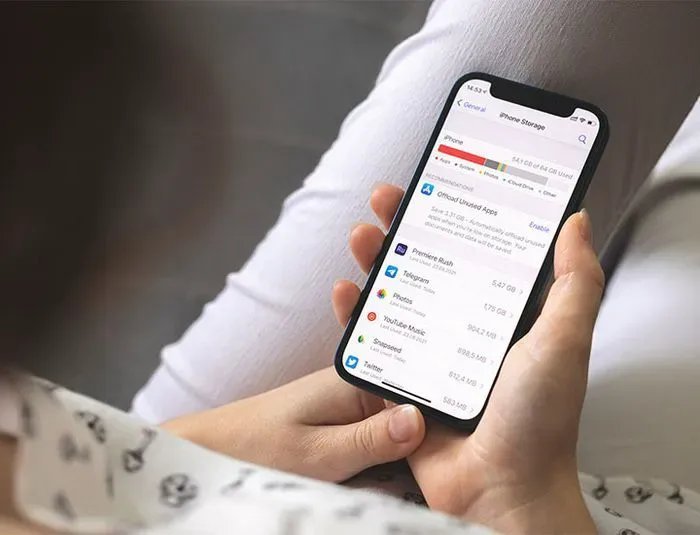
There’s nothing quite like the panic of trying to snap a photo and getting the dreaded “Storage Almost Full” warning. If you’re wondering about the best way to free up storage space on an old iPhone, start here: the single biggest win for most people is offloading unused apps and clearing cached data, which can recover several gigabytes in about five minutes without deleting a single photo.
I’ve resurrected a few aging iPhones for family members, and the pattern is always the same — a handful of sneaky storage hogs eating 80% of the space. Here’s how to find them and take your phone back.
Start With the Storage Breakdown (It’s Eye-Opening)
Go to Settings → General → iPhone Storage and wait a few seconds for the bar graph to load. This screen is genuinely useful — it shows exactly what’s eating your space, app by app, and iOS even suggests things like offloading unused apps.
In my experience, the top offenders on older iPhones are almost always: Photos, WhatsApp, TikTok/Instagram caches, and “System Data” (the mysterious gray blob). Once you see the real numbers, you’ll know exactly where to strike instead of randomly deleting things and hoping.
Offload Unused Apps — the Easiest Gigabytes You’ll Ever Reclaim
This is the move I recommend first to everyone. On that same iPhone Storage screen, tap “Offload Unused Apps” (or enable it under Settings → App Store). Offloading removes the app itself but keeps all your documents and data — so when you reinstall later, everything is exactly where you left it.
I’ve seen this free up 3–8 GB on phones belonging to people who download apps like they’re collecting stamps. Zero risk, zero data loss. There’s genuinely no reason not to turn it on. For a deeper clean, understanding what “Storage Almost Full” really means helps you tell a real crisis from a warning you can manage.
Tame Photos and Message Attachments
Photos are usually the biggest single chunk. You have two great options:
- iCloud Photos with “Optimize iPhone Storage” (Settings → Photos): keeps small thumbnails on the phone and full-resolution originals in iCloud. This alone can free up 10+ GB. The free iCloud tier is only 5 GB though, so you may need the $0.99/month 50 GB plan — honestly worth it.
- Google Photos backup, then “Free up space”: backs up your photos and removes the device copies. Free tier is compressed quality, but fine for most people.
Don’t forget message attachments — years of memes, videos, and voice notes in iMessage/WhatsApp add up fast. In Settings → General → iPhone Storage → Messages, you can review and bulk-delete large attachments. I’ve found 4+ GB of ancient group-chat videos on relatives’ phones. Nobody misses them.
Clear the Sneaky Caches: Safari, Streaming Apps, and System Data
A few more targets worth hitting:
- Safari: Settings → Safari → Clear History and Website Data. Frees a few hundred MB and costs nothing.
- Streaming apps: Spotify, Netflix, and YouTube downloads pile up silently. Check each app’s download settings and delete offline content you won’t rewatch.
- Social apps: TikTok, Instagram, and Reddit don’t offer a clear-cache button on iOS — the fix is deleting and reinstalling the app. Your account data is safe in the cloud; only the bloated cache goes away. I’ve reclaimed 2–3 GB per app doing this.
- System Data: if the gray “System Data” blob is huge (5+ GB), a restart sometimes shrinks it. If it stays massive, backing up and restoring the phone is the reliable fix.
One honest caveat: on really old iPhones (6s, 7) with 16–32 GB total, you’re fighting physics. These tricks buy time, but the long-term answer is a phone with more storage. For guidance on that decision, our tablet-vs-laptop-style breakdown of when to upgrade thinking applies to phones too — and Apple’s official storage management guide covers the iOS settings in detail.
Is Paying for iCloud Storage Actually Worth It?
Let’s talk about the elephant in the room: Apple’s free iCloud tier is 5 GB, which in 2026 holds roughly one sneeze of 4K video. The paid tiers are 50 GB for $0.99/month, 200 GB for $2.99/month, and 2 TB for $9.99/month — and honestly, the $0.99 plan is one of the best dollars in tech.
Here’s the math that convinced my most stubborn relative: 50 GB of optimized photo storage holds something like 15,000–20,000 photos. For a dollar a month, your entire photo library backs itself up, “Optimize iPhone Storage” keeps your phone lean forever, and you never think about storage again. Compare that to the hours you’d spend manually managing files.
The 200 GB plan ($2.99) can be shared with up to five family members via Family Sharing — split six ways that’s fifty cents each, and it covers everyone’s backups and photos. That’s what I run for my family and it’s eliminated every “storage full” text message I used to get.
One caution: don’t let infinite cloud storage turn you into a digital hoarder. I still do a yearly purge of screenshots, duplicates, and blurry shots. Cloud storage is a tool, not a junk drawer — though at these prices, it’s a very forgiving one.
Keep Reading
If this was useful, you might also like what “Storage Almost Full” really means and how to organize thousands of photos on your phone.
The 15-Minute Fix
The fastest path: check Settings → General → iPhone Storage, enable Offload Unused Apps, turn on Optimize iPhone Storage for photos, and delete-and-reinstall your heaviest social apps. That 15-minute routine typically recovers 5–15 GB — enough to keep an old iPhone comfortable for another year or two.
Frequently Asked Questions
Why does my iPhone say storage is full when I barely have apps?
Photos, videos, message attachments, and app caches are the usual culprits — not the apps themselves. Check Settings → General → iPhone Storage for the real breakdown before deleting anything.
Does offloading apps delete my data?
No. Offloading removes only the app binary; your documents, logins, and settings stay on the phone and restore automatically when you reinstall. It’s completely safe.
How much free space should I keep on my iPhone?
Aim for at least 2–3 GB free. iOS needs breathing room for updates, caching, and photo processing — a phone with 200 MB free will feel sluggish no matter what else you do.