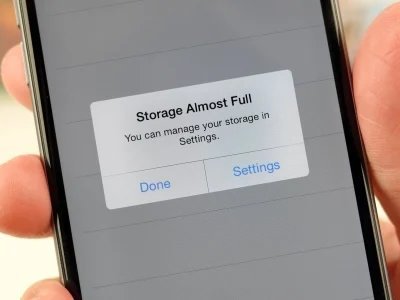
That “Storage Almost Full” warning isn’t just an annoyance — it’s your phone telling you it’s about to start malfunctioning. When your phone says storage is almost full, it means less than ~10% of your storage remains free, and at that point iOS and Android both start degrading: apps can’t update, photos won’t save, and the whole phone gets sluggish.
Most people treat it like a check-engine light they can ignore for months. Here’s what it actually means, what breaks if you ignore it, and the fastest fixes.
What the Warning Actually Means (Technically)
Your phone needs free storage as working space, not just a place to put files. The operating system constantly writes temporary files, caches, update packages, and swap space. When free space drops below roughly 1–2 GB (or ~10%):
- System updates fail — iOS updates need 5+ GB of breathing room to download and unpack
- Apps can’t update or install — even a 200 MB app update needs scratch space
- Camera may refuse to save photos/videos — the cruelest failure, usually discovered at the worst moment
- Everything slows down — the OS can’t cache efficiently, so every action stutters
- Messages and email stop syncing properly
Think of it like a desk buried in papers — you can’t work on it anymore, not just store things on it. The fix isn’t just “delete something” — it’s restoring enough headroom for the phone to function. Our iPhone-specific cleanup guide walks through the biggest wins step by step.
What’s Probably Eating Your Space (the Usual Suspects)
Check Settings → Storage (Android) or Settings → General → iPhone Storage for your personal breakdown, but the lineup is remarkably consistent:
- Photos and videos (usually #1): a minute of 4K video is ~400 MB. That “quick video” habit adds up to tens of GB fast.
- WhatsApp / Telegram / Messages: years of group-chat videos, memes, and voice notes. I’ve seen 8+ GB hiding here.
- Streaming app downloads: Netflix/Spotify offline content you downloaded for a trip six months ago.
- Social media caches: TikTok, Instagram, and Facebook can each hoard 1–3 GB of cached data.
- “System” / “Other”: the mysterious gray chunk — caches, logs, and failed update files. A restart sometimes shrinks it; a backup-and-restore fixes it properly.
- Forgotten large apps: games you played twice (2–4 GB each), each holding a grudge in storage.
The 15-Minute Emergency Fix
Warning active, need space now? Do these in order — biggest impact first:
- 1. Offload/delete unused apps (5 min): sort apps by size, remove the big ones you don’t use. On iPhone, use Offload to keep their data. Instant multi-GB wins.
- 2. Clear message attachments (3 min): in your messaging apps, find the storage/media section and bulk-delete old videos and memes. Huge, painless savings.
- 3. Delete downloaded streaming content (2 min): Netflix → Downloads, Spotify → downloaded playlists. Re-downloadable anytime.
- 4. Clear browser and social caches (3 min): or delete-and-reinstall the worst social apps — the nuclear cache clear.
- 5. Restart the phone (2 min): clears temporary system files and sometimes shrinks that “System” blob noticeably.
This routine typically recovers 5–15 GB — enough to silence the warning and restore normal function. For the permanent fix (photos), read on.
The Permanent Fix: Get Photos Off the Phone
Emergency cleanup buys time; photo backup solves it permanently. The pattern that works:
- Turn on Google Photos or iCloud Photos with “optimize storage” — full-res originals live in the cloud, thumbnails stay on the phone.
- After backup completes, use “Free up space” (Google Photos) to remove device copies of backed-up photos.
- This typically reclaims 50–80% of used storage in one move. It’s the closest thing to a magic button in phone maintenance.
The objection I always hear: “but I want my photos on my phone.” You still have them — thumbnails load instantly, full versions download in a second when you open them. The only difference is 30 GB of free space. And honestly, once photos live safely in the cloud, organizing thousands of them becomes possible instead of overwhelming.
When It’s Time to Admit Defeat (Upgrade the Storage)
Sometimes the honest answer is that 16 GB or 32 GB just isn’t enough in 2026. If you’ve done everything above and you’re still constantly at the edge:
- 16–32 GB phones: fighting physics. A single OS update can need 5 GB. Consider this a sign.
- 64 GB: workable with cloud photo backup and discipline, tight without it.
- 128 GB: the current sweet spot — comfortable for most people for 3–4 years.
- 256 GB+: for 4K video shooters and offline-media hoarders.
Also: SD card slot? If your Android has one, a 128 GB microSD ($15–$20) for photos and media is the cheapest storage upgrade in tech — move the camera storage location to the card and breathe easy. iPhones don’t have this option, which is exactly why buying enough storage upfront matters so much with Apple. Google’s storage management guide has the official walkthrough.
Keep Reading
If this was useful, you might also like our iPhone-specific cleanup guide and organizing thousands of phone photos.
The Bottom Line
“Storage Almost Full” means your phone can’t function properly — not just “you can’t add more stuff.” Emergency fix: offload unused apps, nuke message attachments and old downloads, restart. Permanent fix: cloud photo backup with “free up space.” And if you’re on 32 GB or less in 2026, the real fix is a phone with more storage next time — 128 GB minimum.
Frequently Asked Questions
How much free space should I keep on my phone?
Aim for at least 10% or 3–5 GB free, whichever is larger. Below that, updates fail, apps misbehave, and performance degrades. Think of it as your phone’s minimum operating balance.
Why is ‘System’ taking up so much storage?
‘System’/’Other’ includes caches, logs, Siri voices, failed updates, and diagnostic data. A restart often trims it; if it’s persistently huge (10+ GB), backing up and restoring the phone is the reliable fix.
Will deleting photos free up space immediately?
On iPhone, deleted photos go to ‘Recently Deleted’ for 30 days and still occupy space until purged — empty that album to reclaim space now. On Android with Google Photos, use ‘Free up space’ after confirming backup is complete.