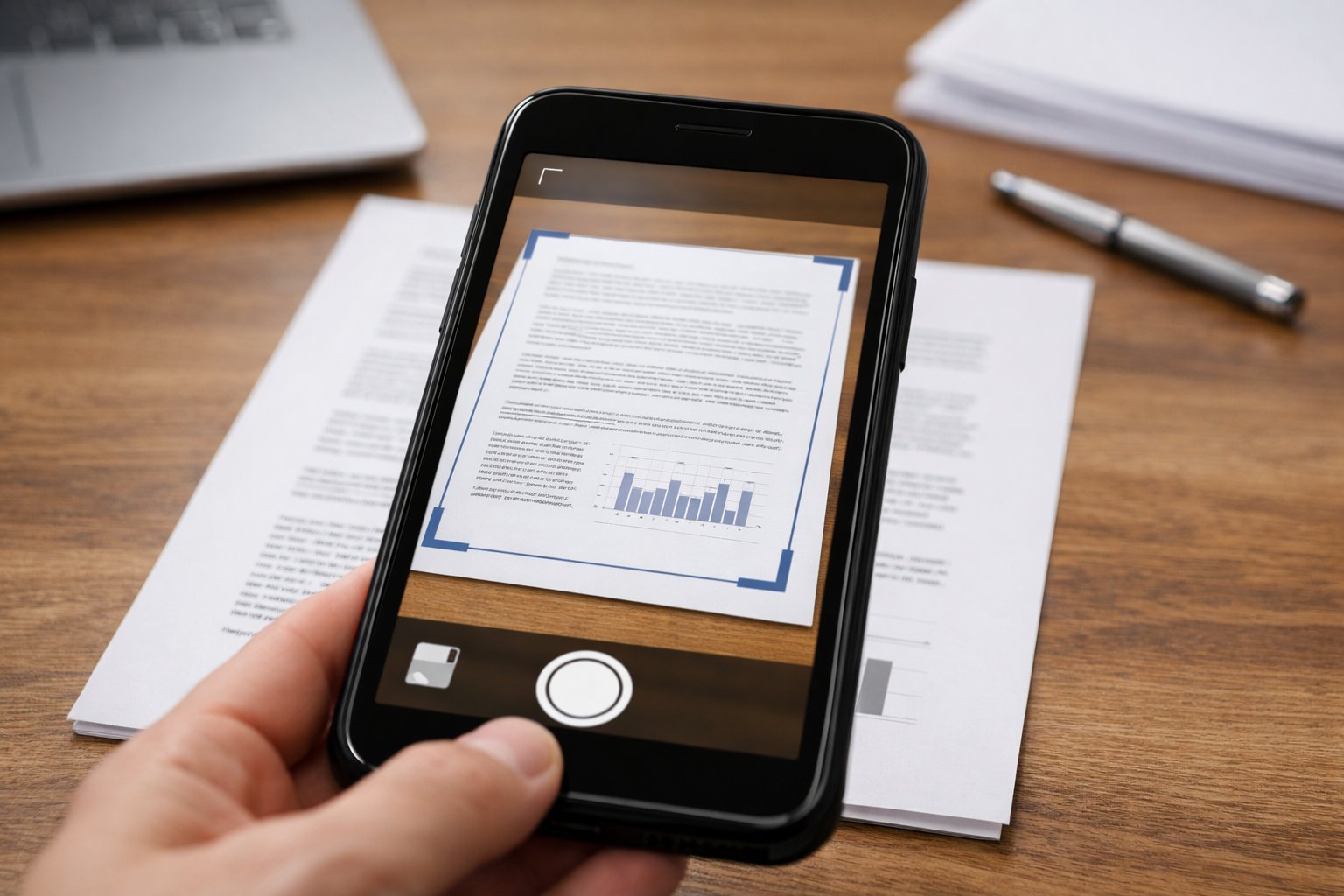
Your phone is a better scanner than the dusty flatbed in your closet — seriously. Scanning documents with your phone camera takes about 30 seconds per page, produces clean PDFs, and the built-in tools (no app download needed) are genuinely excellent now.
I’ve gone fully paperless for bills, receipts, and contracts using just my phone. Here’s how to get crisp, professional results every time.
iPhone: It’s Built Into Notes (No App Needed)
- Open the Notes app → new note → tap the camera icon → Scan Documents.
- Point at the document — the iPhone auto-detects edges, captures, and straightens. It even shoots in auto mode as you flip pages.
- Tap the thumbnail to adjust corners, retake pages, or change color (color/grayscale/black-and-white).
- Hit Save → the scan embeds in the note → share as PDF via the share sheet.
The Files app also scans (browse → ••• → Scan Documents) — same engine, saves directly as PDF to iCloud Drive. Quality is excellent: edge detection, perspective correction, and shadow removal all work well. For 95% of scanning needs, this is all you’ll ever use.
Android: Google Drive’s Scanner (Also Built In)
- Open Google Drive → tap the camera icon (or + → Scan).
- Same deal: auto edge-detection, perspective correction, multi-page capture.
- It saves as PDF directly to Drive — searchable, shareable, backed up.
- Samsung phones: the Camera app has a built-in document scan mode (tap the “T” icon when it detects text) — excellent quality, saves to Gallery/Files.
- Pixels: Google Drive scanner plus Google Lens for quick text extraction.
Between Drive’s scanner and Samsung’s camera mode, Android is fully covered with zero downloads. The scans are genuinely good — I’ve submitted phone-scanned contracts and tax documents without a single complaint.
When to Use a Dedicated Scanning App
Built-ins cover basics; dedicated apps add power features:
- Adobe Scan (free): the best free option — superb auto-crop, OCR text recognition (makes scans searchable), business-card mode, and clean PDF output. My recommendation if you scan regularly.
- Microsoft Lens (free): excellent for whiteboards and blackboards (glare removal is magic), plus document/ business-card modes. Integrates with OneDrive/Office.
- SwiftScan / Scanner Pro (paid): for heavy users — batch workflows, cloud auto-upload, advanced OCR.
- Genius Scan (free tier): solid all-rounder with good export options.
OCR is the killer feature — it converts the image to searchable/selectable text. Scanning a 20-page contract you can search beats a 20-page photo every time. If you scan more than occasionally, Adobe Scan’s free OCR alone justifies the install.
7 Tips for Crisp, Professional Scans
- 1. Light it evenly. Near a window, no harsh shadows. Your phone’s shadow across the page is the #1 quality killer — hold the phone to the side, not directly overhead.
- 2. Dark background. White paper on a dark table = perfect edge detection. White on white confuses the auto-crop.
- 3. Flatten the document. Creases and curls distort text. For books, press gently near the spine; some apps have “book mode” de-warping.
- 4. Fill the frame. Get close — more pixels on the document = sharper text. But keep all four corners visible for auto-detect.
- 5. Hold steady / use both hands. Motion blur ruins OCR. Prop your elbows on the table for multi-page sessions.
- 6. Clean the lens. A quick wipe on your shirt. Pocket lint on the lens = hazy scans, and you’ll blame the app.
- 7. Check before moving on. Zoom into the preview — if small text is blurry, retake now, not after you’ve filed the original away.
Going Paperless: the Workflow That Actually Sticks
- Scan immediately: mail arrives → scan → shred/recycle. The “to-scan pile” is where paperless dreams die.
- Name files sensibly: “2026-10-17_ElectricBill.pdf” beats “Scan_0042.pdf” when you’re searching in April.
- One inbox folder: all scans land in a single “Scans” folder (in cloud storage), sorted monthly. Simple beats elaborate.
- What to keep physically: almost nothing — but keep originals of birth certificates, car titles, property deeds, and anything with a raised seal. Everything else, the scan suffices.
- Receipts: scan thermal receipts ASAP — they fade to blank within 1–2 years. Your warranty claim in 2027 will thank you.
- Security: scanned tax docs and IDs deserve two-factor-protected cloud storage, not your camera roll. Move sensitive scans out of Photos.
Total effort once habituated: ~2 minutes a day. Total payoff: every document searchable forever, zero filing cabinets, and moving house without seventeen boxes of paper. Apple’s document scanning guide covers the iPhone method officially.
Bonus: Scanning Old Printed Photos
The same setup digitizes printed photos beautifully — with a couple of tweaks:
- Kill the glare: glossy prints reflect your phone and the room. Shoot at a slight angle or use a dedicated app like Google PhotoScan (free) — it takes multiple angled shots and merges them glare-free. Genuinely impressive tech.
- Color mode, not black-and-white: obvious, but the document presets default to B&W — switch back for photos.
- Do them in batches: set up once by the window and power through a stack — 100 photos takes about an hour.
- Back up immediately to cloud storage — the whole point is that these survive floods, fires, and fading.
Old prints fade and stick together over decades; a digital copy is forever. Next family gathering, bring your phone and a shoebox — you’ll be the hero.
Keep Reading
If this was useful, you might also like cloud storage and free backup guide.
The Bottom Line
iPhone → Notes app → Scan Documents. Android → Google Drive → camera icon. Both are built in, free, and excellent — auto edge-detection, perspective correction, PDF output. For OCR and heavy use, grab Adobe Scan (free). Scan in good light on a dark background, name files by date, and file into cloud storage immediately. Your filing cabinet called — it’s obsolete.
Frequently Asked Questions
Are phone scans legally acceptable?
For most purposes, yes — banks, insurers, landlords, and the IRS accept clear phone scans of documents. Keep physical originals of vital records (birth certificates, titles, deeds), but scans suffice for bills, receipts, contracts, and tax supporting docs.
What’s OCR and do I need it?
OCR (optical character recognition) converts scan images into searchable, selectable text. You need it if you ever want to search within scanned documents or copy text out — Adobe Scan and Microsoft Lens do it free.
How do I scan multiple pages into one PDF?
All the built-in scanners (iPhone Notes, Google Drive) capture multiple pages into a single PDF automatically — just keep shooting pages, then save once. Dedicated apps offer batch/reorder tools for longer documents.