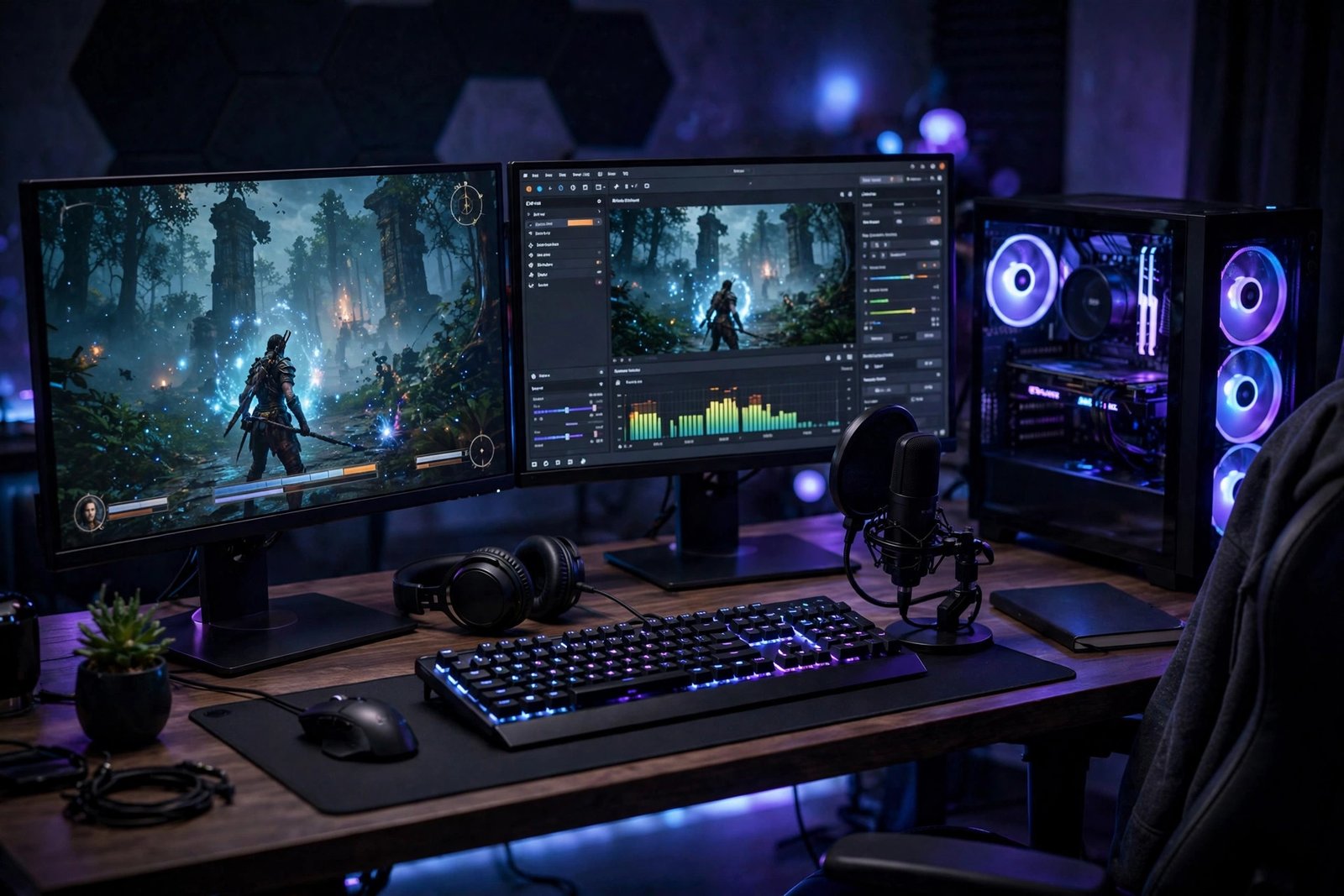
There’s nothing more frustrating than capturing an incredible play — the clutch, the perfect speedrun segment, the hilarious glitch — only to watch the recording and discover your game was stuttering the whole time. Recording gameplay hits performance because your PC is suddenly doing two demanding jobs at once: running the game and encoding video in real time. But with the right setup, you can record with virtually zero FPS loss. The secret isn’t a more powerful PC — it’s making the recording work smarter, not harder.
This guide covers the methods that preserve your frame rate: hardware encoding (the game-changer most people underuse), the best free and paid software configured correctly, optimal settings for quality without the performance hit, and the hardware tweaks that help. Whether you’re starting a channel or just saving clips for friends, you’ll be recording like a pro without your games feeling it.
Use Hardware Encoding: The Single Biggest Win
This is the 80/20 of recording performance. Your GPU has dedicated hardware for video encoding — NVIDIA’s NVENC, AMD’s AMF/VCE, Intel’s Quick Sync — silicon designed specifically to compress video without touching the parts of the GPU that render your game. Using it typically costs 1–5% of your frame rate. Using software (CPU) encoding instead can cost 15–30% or more, because now your CPU is encoding video instead of running game logic.
In OBS Studio (free, the standard), this means selecting NVENC (for NVIDIA), AMF (for AMD), or Quick Sync (for Intel) as your encoder — never x264 (CPU) unless you have cores to spare and a specific reason. In NVIDIA’s own ShadowPlay (now part of the NVIDIA App), NVENC is used automatically. AMD’s Adrenalin software similarly uses the GPU’s encoder by default. If your recordings are tanking your FPS, the encoder setting is the first place to look — it’s the cause nine times out of ten.
One nuance: hardware encoders produce slightly larger files than CPU encoding at the same quality, because they’re less efficient compressors. That’s a storage trade-off, not a performance one — and storage is cheap. The OBS Project’s official guides document the optimal encoder settings per GPU generation; a ten-minute read there saves hours of trial and error.
Pick the Right Software for Your Goal
OBS Studio: The Free Powerhouse
OBS is free, open-source, and what most streamers and YouTubers actually use. Its strength is control: separate audio tracks (game, mic, Discord), scenes, and fine-grained encoder settings. The learning curve is real but shallow — the auto-configuration wizard gets you 90% of the way, and you only need to touch the encoder and bitrate settings covered below. For serious recording, nothing free beats it.
GPU Vendor Tools: The Zero-Effort Option
NVIDIA’s ShadowPlay (in the NVIDIA App) and AMD Adrenalin’s recording can capture with a hotkey, including “instant replay” — continuously buffering the last X minutes so you can save a clip after something amazing happens, without having recorded the whole session. This is the lowest-overhead option available and perfect for clip-saving. The trade-off is fewer options: basic quality settings, single audio track, no scenes.
Paid Options: When They’re Worth It
Outplayed, Medal, and similar tools specialize in automatic highlight detection — they identify kills, deaths, and big moments and clip them for you. Convenient, but they run background processes that cost some performance, and their free tiers have limits. Worth it if automatic clipping is the feature you actually want; otherwise OBS or vendor tools do the core job free.
Settings That Preserve FPS Without Trashing Quality
Here’s a configuration that works for most mid-range and better PCs. In OBS: Output mode set to Advanced, encoder to your hardware encoder (NVENC/AMF/Quick Sync), rate control to CQP (constant quality) at CQ 18–23 for recording (lower number = higher quality and bigger files), preset to “Quality” or “P5,” and lookahead/psycho-visual tuning on if available. Record to MKV or FLV (crash-safe — if OBS crashes, the file survives; remux to MP4 afterward in one click), not directly to MP4.
Resolution and frame rate: recording at your native resolution and refresh (e.g., 1080p60 or 1440p60) is standard. Don’t record at a higher resolution than you play — downscaling costs performance for no benefit. If FPS still dips, drop the recording to 1080p60 while playing at 1440p; viewers won’t notice, and your game stays smooth. And when it’s time to share your footage, knowing the internet speed you actually need for streaming helps you plan uploads without the guesswork. Cap your in-game frame rate slightly below your monitor’s max if you’re maxing out the GPU — a GPU at 100% has no headroom for the encoder, but at 90% the encoder rides free.
Audio: record at 48kHz, 160–320 kbps AAC. Use separate audio tracks in OBS (game on track 1, mic on track 2) so you can balance them in editing. This costs zero performance and saves every editor hours of frustration. NVIDIA’s documentation at nvidia.com details NVENC capabilities per GPU generation if you want to fine-tune further.
Hardware and System Tweaks That Help
Record to a different drive than your game runs on. When the game reads assets and the recorder writes video to the same SSD simultaneously, they contend — a second SSD (even a SATA one) for recordings eliminates this. It’s the cheapest meaningful hardware upgrade for recording.
Close background apps that use the GPU or CPU meaningfully: browsers with hardware acceleration, Discord’s hardware acceleration (turn it off in Discord settings — voice still works fine), and overlays you don’t need. Each one steals a few percent. Run the game in fullscreen (not borderless windowed) when possible — fullscreen exclusive mode gives the game priority and slightly better performance, which leaves more headroom for encoding.
Keep drivers current, especially GPU drivers — encoder improvements ship in driver updates regularly. And monitor with data, not vibes: OBS’s stats dock shows encoding lag and rendering lag separately, telling you exactly whether the encoder or the game is the bottleneck. Guessing wastes time; the stats dock doesn’t.
Keep the Rest of Your PC Out of the Way
Recording performance is a whole-system affair. Background Windows processes, antivirus scans, and Windows Update can all spike CPU or disk mid-session. Schedule scans and updates for idle hours, enable Game Mode (it does help modestly with background prioritization), and consider a dedicated Windows user profile for gaming with minimal startup apps.
Thermal throttling is the silent FPS killer: if your CPU or GPU overheats, everything slows — game and encoder together. Monitor temperatures during a test recording; sustained temps above 85–90°C on CPU or 83°C+ on GPU suggest cooling needs attention (dust cleaning is free and often transformative). A PC that runs cool records smoothly; for general system health, having the best antivirus software for a home PC configured with gaming-friendly settings (silent/gaming mode during play) keeps protection from becoming a performance tax.
The Bottom Line
Recording gameplay without losing FPS comes down to three moves: use your GPU’s hardware encoder (NVENC/AMF/Quick Sync) instead of CPU encoding, configure OBS or your vendor tool with sensible quality settings (CQP 18–23, separate audio tracks, MKV format), and record to a different drive than your game. Do those three and most PCs lose under 5% of their frame rate — imperceptible in practice. Everything else is optimization. Stop letting the fear of performance loss keep your best moments unrecorded.
Frequently Asked Questions
Does recording gameplay lower FPS?
With hardware (GPU) encoding, the impact is typically 1–5% — imperceptible. With CPU/software encoding, it can be 15–30% or more. The encoder choice is the dominant factor; everything else is fine-tuning.
What’s the best free software to record gameplay on PC?
OBS Studio — free, open-source, extremely capable, with hardware encoding support and multi-track audio. For zero-setup clip saving, NVIDIA ShadowPlay or AMD Adrenalin’s instant replay features are even simpler.
Should I record to MP4 or MKV?
Record to MKV (or FLV), then remux to MP4 afterward in OBS (one click, no re-encoding). If the software crashes mid-recording, MKV preserves everything up to the crash; MP4 often corrupts the entire file.
How much storage do I need for gameplay recordings?
At high quality (CQP 18–20, 1080p60), expect roughly 3–6 GB per hour; 1440p60 runs 6–12 GB per hour. A dedicated 1TB drive holds 150+ hours of 1080p footage — plenty for most creators.
Why is my recording laggy but the game feels fine?
That usually means the encoder is overloaded while the game isn’t — check OBS’s stats for “encoding lag.” Fixes: switch to hardware encoding, lower the recording quality slightly (raise CQP), or reduce recording resolution. If “rendering lag” appears instead, the GPU is maxed — cap in-game FPS or lower game settings.