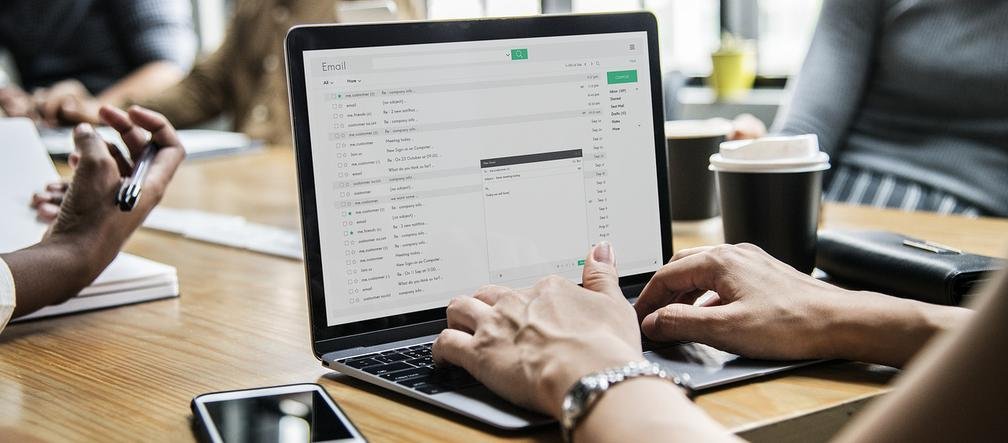
How can I use AI to write better emails at work? If you’ve ever spent 20 minutes agonizing over a three-paragraph email — too blunt? too wordy? does this sound rude? — you’re the exact person AI email assistance was built for. Used well, AI doesn’t just write emails faster; it writes them better: clearer, warmer, and more likely to get the response you want.
I use AI for email daily, and there’s a real craft to it. The people who get magical results and the people who get robotic garbage are doing different things. Here’s the difference.
The Core Technique: Draft, Don’t Delegate
The golden rule: AI drafts, you decide. Never send AI output untouched — not because it’s always bad, but because you know the relationship, the politics, and the subtext, and AI doesn’t. Think of AI as a brilliant junior assistant who writes a great first draft in ten seconds, which you then sharpen with your judgment.
The workflow that works: give AI the raw ingredients (what you need to say, who it’s for, the tone you want, any must-include facts), let it draft, then edit for accuracy, warmth, and your voice. A two-minute edit pass turns a good AI draft into an email that’s unmistakably yours — just better structured than the one you’d have sweated over.
Prompts That Actually Work (Steal These)
Vague prompts get vague emails. The magic is in the specifics:
- The difficult email: “Draft a polite but firm email to a vendor whose delivery is two weeks late. I want to preserve the relationship but make clear this can’t happen again. Tone: professional, direct, no passive aggression.”
- The follow-up: “Write a friendly follow-up to a client who hasn’t replied in a week about the proposal I sent. Keep it short, add a soft nudge, don’t sound desperate.”
- The cold outreach: “Draft a cold email to a local business owner introducing my bookkeeping service. Under 120 words, focus on one specific benefit, end with a low-pressure question.”
- The apology: “Help me write a sincere apology email to a customer whose order shipped late. Take responsibility, explain briefly what happened, offer a concrete make-good.”
- The “make this nicer”: Paste your blunt draft and ask: “Rewrite this to sound warm and collaborative while keeping all the facts. Remove anything that could read as accusatory.”
Notice the pattern: context + audience + tone + constraints. That formula works for nearly every work email. For deeper inbox control beyond individual emails, AI can also help organize your entire inbox.
How Can I Use AI to Write Better Emails at Work Without Sounding Like a Robot?
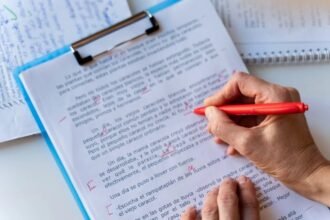
This is the real concern, and it’s valid — we’ve all received those eerily polished, slightly soulless AI emails. The fix is personalization in your edit pass. Add one specific detail AI couldn’t know: reference your last conversation, mention something timely, use a phrase you actually say. One genuine sentence transforms a template into a message.
Also, develop a personal “AI tell” checklist. AI loves certain tics — overly formal openers (“I hope this email finds you well”), triple-parallel structure (“streamline, optimize, and revolutionize”), and enthusiastic closers that don’t match your personality. Learn your tool’s habits and strip them. Your emails should sound like you on a good day, not like a press release.
The Etiquette Rules Nobody Tells You
Disclose when it matters. For routine business emails, no disclosure needed — AI is a writing tool like spellcheck. But for deeply personal messages (condolences, heartfelt thanks, sensitive HR matters), write it yourself. People can tell, and it matters.
Never put confidential info into AI tools casually. Client data, financials, unreleased plans — check your company’s AI policy first. Many firms now have approved tools and banned ones. The safety questions around sharing info with AI chatbots apply doubly at work, where the stakes include other people’s data.
Fact-check everything. AI confidently invents details — dates, numbers, names. Every factual claim in an AI-drafted email needs your verification. One hallucinated figure in a client email can do real damage.
Built-In Helpers You’re Probably Ignoring
Before reaching for a separate tool, check what’s already in your inbox: Gmail’s Smart Compose and “Help me write” (in the mobile app), Outlook’s Copilot drafting, and Apple Mail’s writing tools all handle quick drafts without leaving your email. For many people, these built-ins cover 80% of needs. And AI proofreading tools are perfect for the final check before you hit send.
A Real Before-and-After
See the difference in practice. A manager’s frustrated first draft: “Your team missed the deadline again. This is the second time. We need the report by Friday or we’ll have problems.” Accurate, but guaranteed to put the recipient on the defensive.
The AI-assisted rewrite, after a two-minute edit: “Hi Maya — I noticed the report didn’t come in yesterday, and I know your team’s juggling a lot right now. I need it by Friday to keep our client timeline intact. Is there anything blocking you that I can help clear?” Same facts, same deadline, completely different outcome. The first version starts a conflict; the second starts a problem-solving conversation. That shift — from blunt to effective — is what AI email assistance is really for. It’s not about writing more emails; it’s about making each one land better.
The Practical Takeaway
To use AI to write better emails at work: let AI draft from your specific prompt (context + audience + tone + constraints), then edit for your voice and verify every fact. Add one personal detail per email, strip the robotic tics, and keep sensitive data out of unapproved tools — and watch how quickly “email dread” disappears from your workday. Do that and you’ll write clearer, kinder, more effective emails in a fraction of the time — which, multiplied across hundreds of emails a year, is one of the highest-leverage habits in modern work life — and your colleagues will notice the difference in your communication before you even mention you’re using any new tools. If you’re curious how we got here, the history of email explains how a 1970s messaging experiment became the backbone of office life.